
Appearance
The client app
This page is for: the client's team, who use the client app on the web or on a phone.
Built
The client app is where you describe your own work. You answer short questions about your role, you check what DutyGraph writes from your answers, and you can read the company files your role is allowed to see.
It is not there to watch you. What you share is used to describe the work, not to rate you. You check everything written about your role before it is final.
The app works in a web browser on a laptop and on a phone. There is nothing to install.
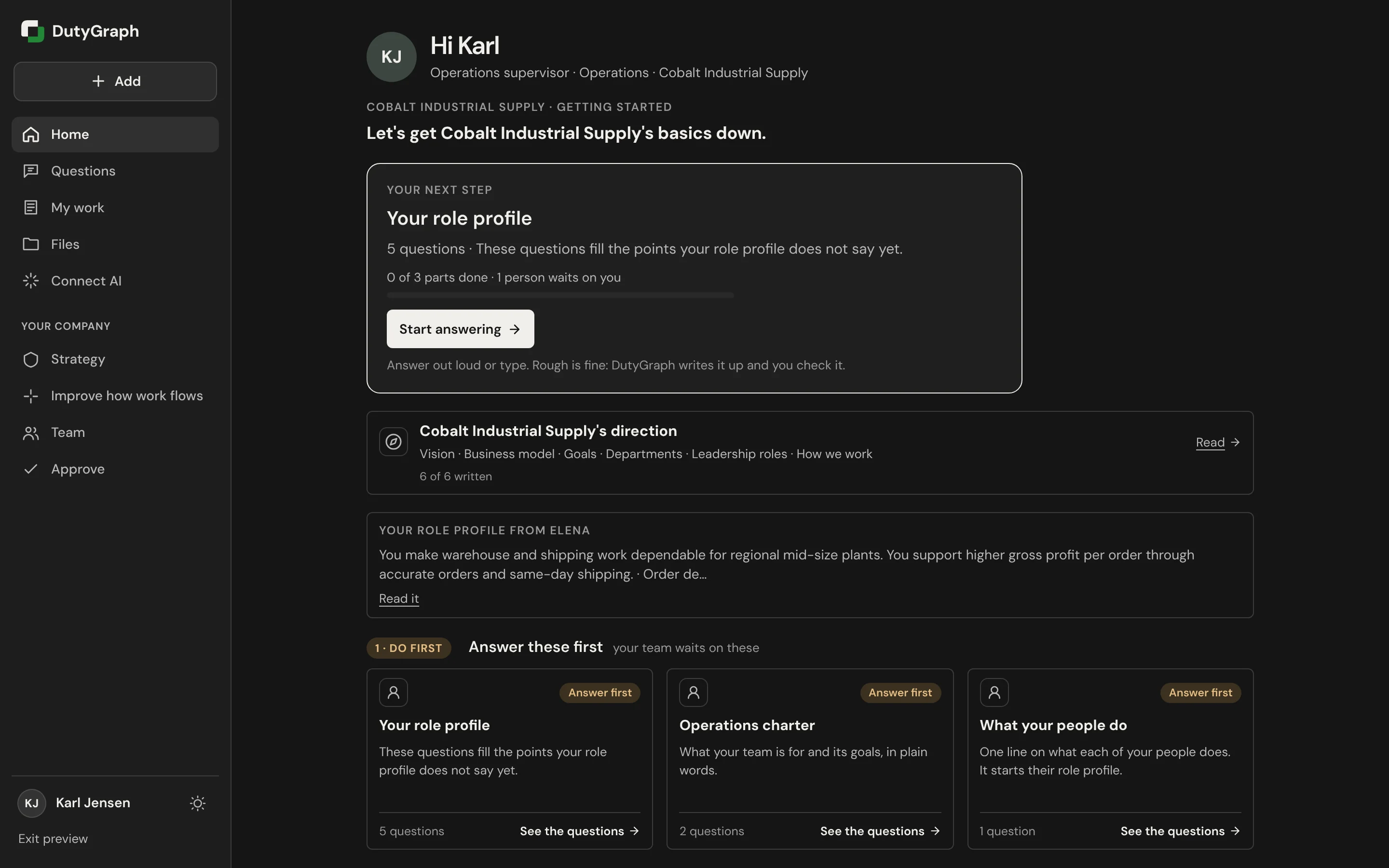
Sign in
Your advisor sends you a link to the app, or your company shares one sign-in link for the whole team.
- Open the link.
- Type your work email and select Email me a sign-in code.
- Check your email for a 6-digit code. It works for 10 minutes. If it is not there after a minute, look in your junk folder.
- Type the code and select Sign in.
There is no password. If the code runs out, select Send a new code.
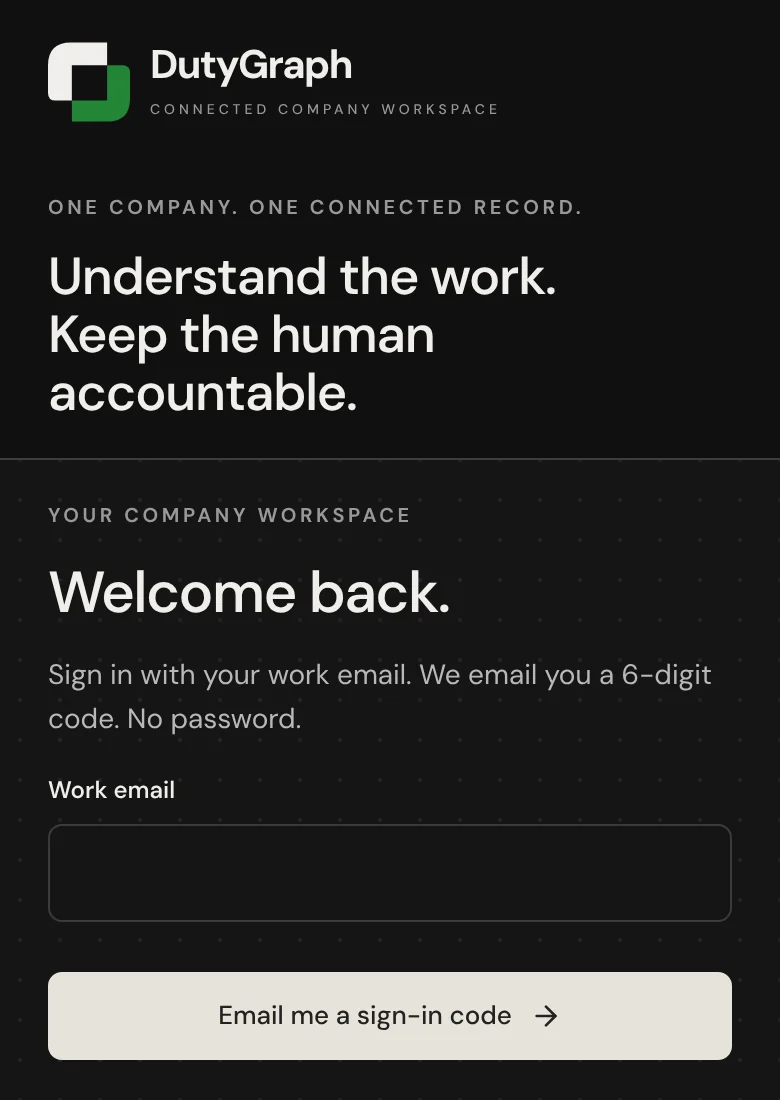
The main screens
On a laptop the screens are in a menu on the left. On a phone the first five are buttons along the bottom, and the rest are under More at the top right.
| Screen | What it holds |
|---|---|
| Home | Your next step, your company's direction, and your question sets in order: Do first, then Set up next |
| Questions | A list of your question sets and how far you are with each one |
| My work | Your Task Cards: one card for each task you do. Talk about your work turns what you say into cards, and Ask DutyGraph Agent helps you finish them |
| Files | The company files shared with your role, and the files you sent |
| Connect AI | How to connect the AI you already use (ChatGPT, Claude, Gemini, Microsoft Copilot, Cursor) |
| Strategy | Your company's purpose, vision, goals and business model, in your leaders' words |
| Improve how work flows | Where work waits or breaks, and a place to suggest a better way |
| Team | What your team has shared so far, as team totals |
| Your place | Where your work fits: company, department, role and your Task Cards, and the card to finish next |
If you manage people, you may also see Approve.
The Add button (on a phone, the round button) lets you Talk about your work, send a file, take a photo of a form or a whiteboard, or write a Task Card.
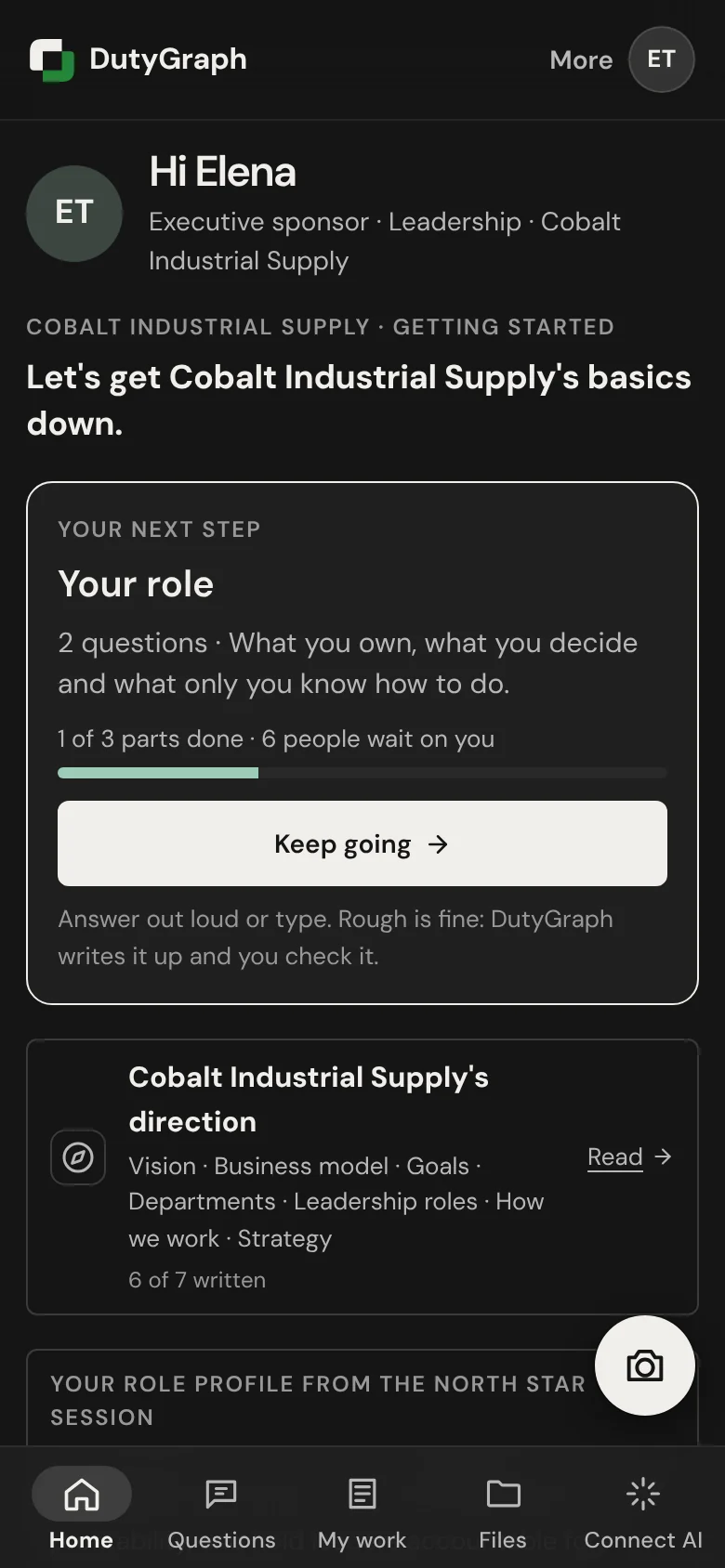
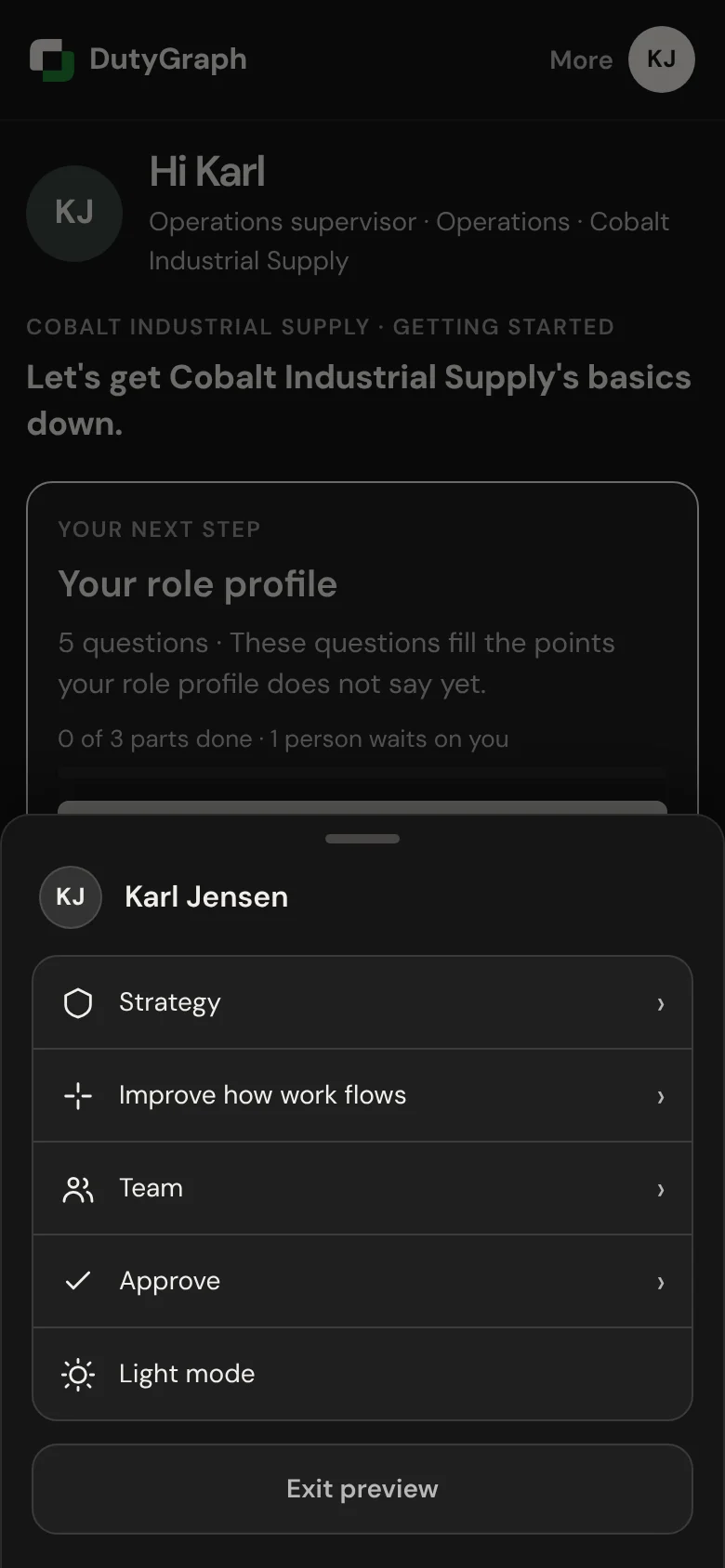
The sun or moon button switches between dark and light mode.
Where to go next
- Answer your questions: the first thing most people do.
- My work, Files and your company: Talk about your work, Task Cards, DutyGraph Agent, company files, strategy and your team.
- Connect your AI: use ChatGPT, Claude or another AI with DutyGraph.
- On your phone: the same steps at phone size.
For advisors: The client app, advisor's view.