Appearance
On your phone
This page is for: the client's team, who use the client app on the web or on a phone.
Built
The client app works in your phone's web browser. Open the same link you use on a laptop and sign in with your work email and a 6-digit code.
Find your way around
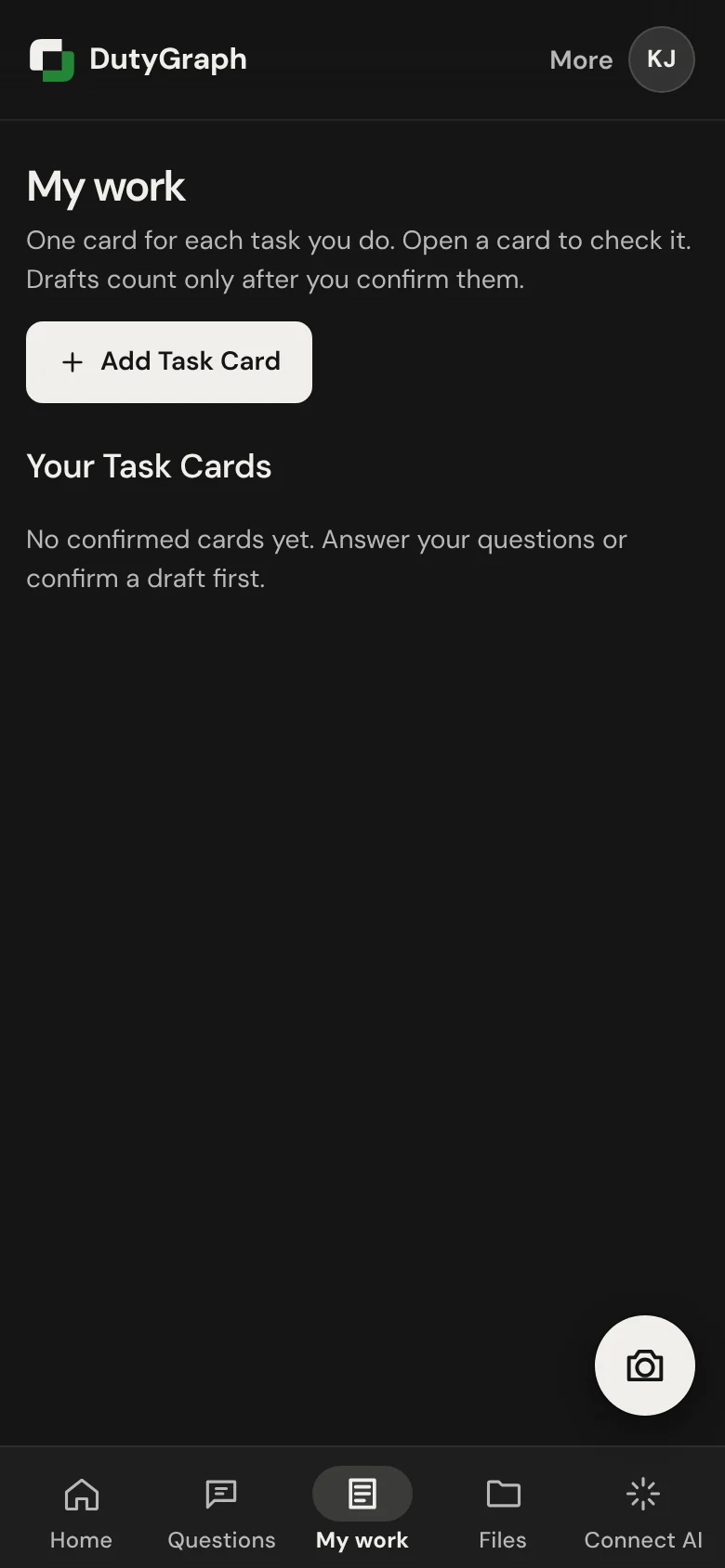
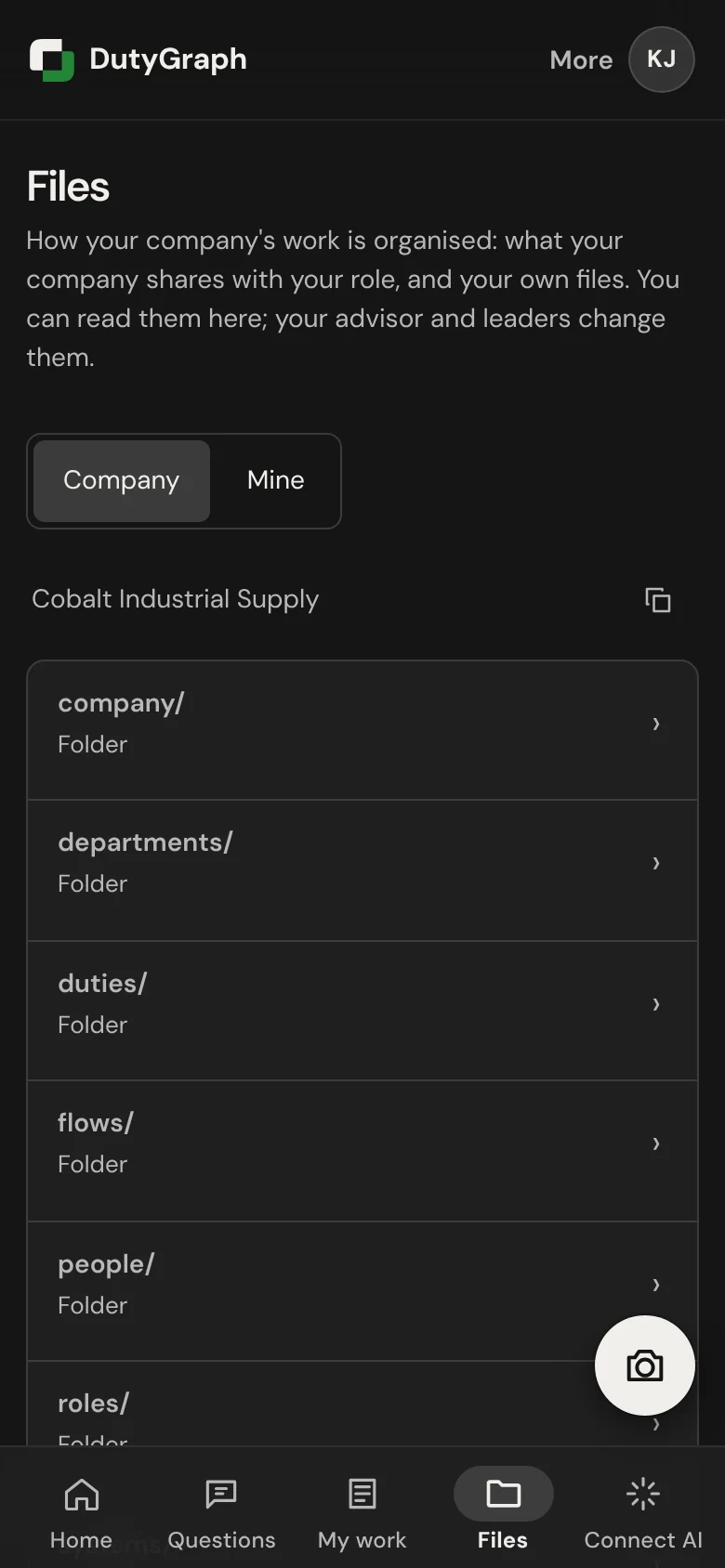
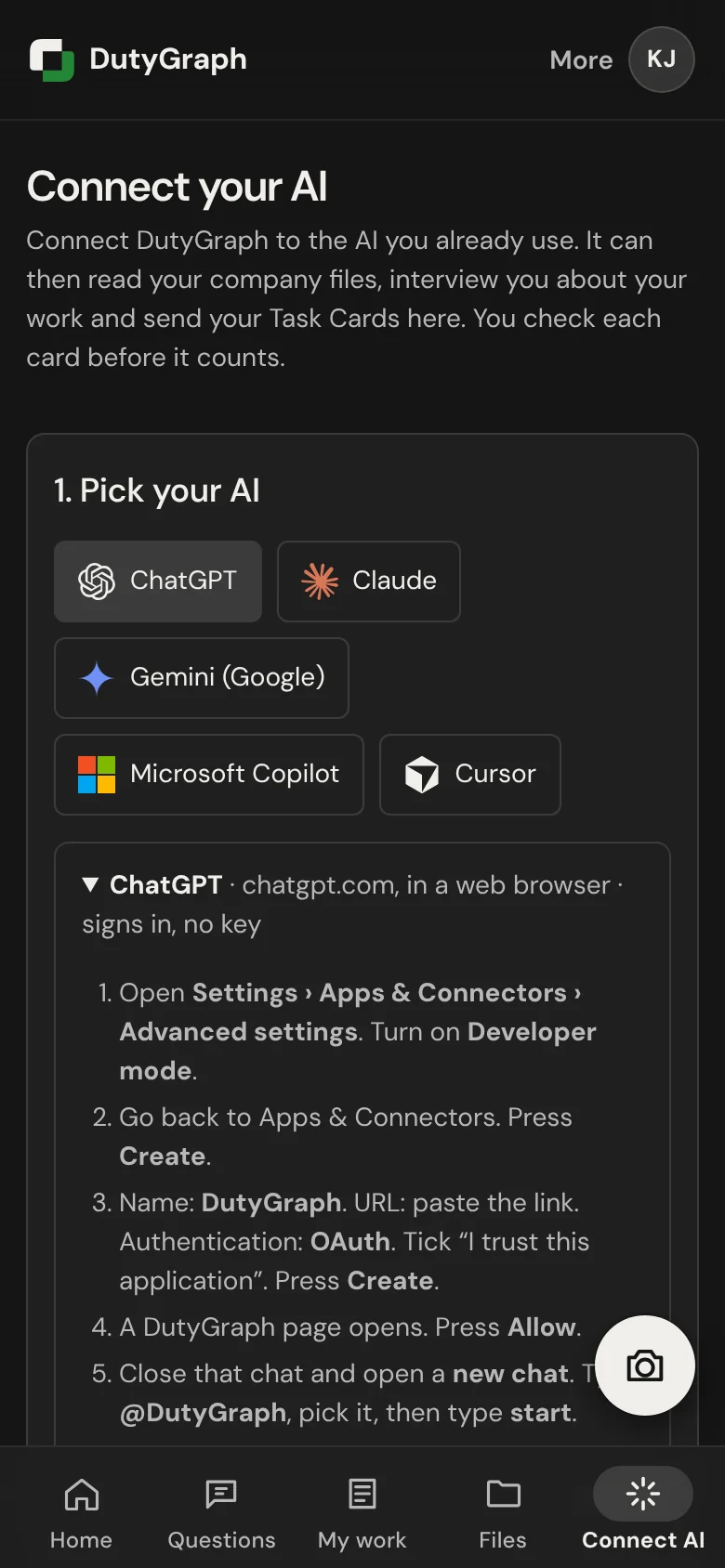
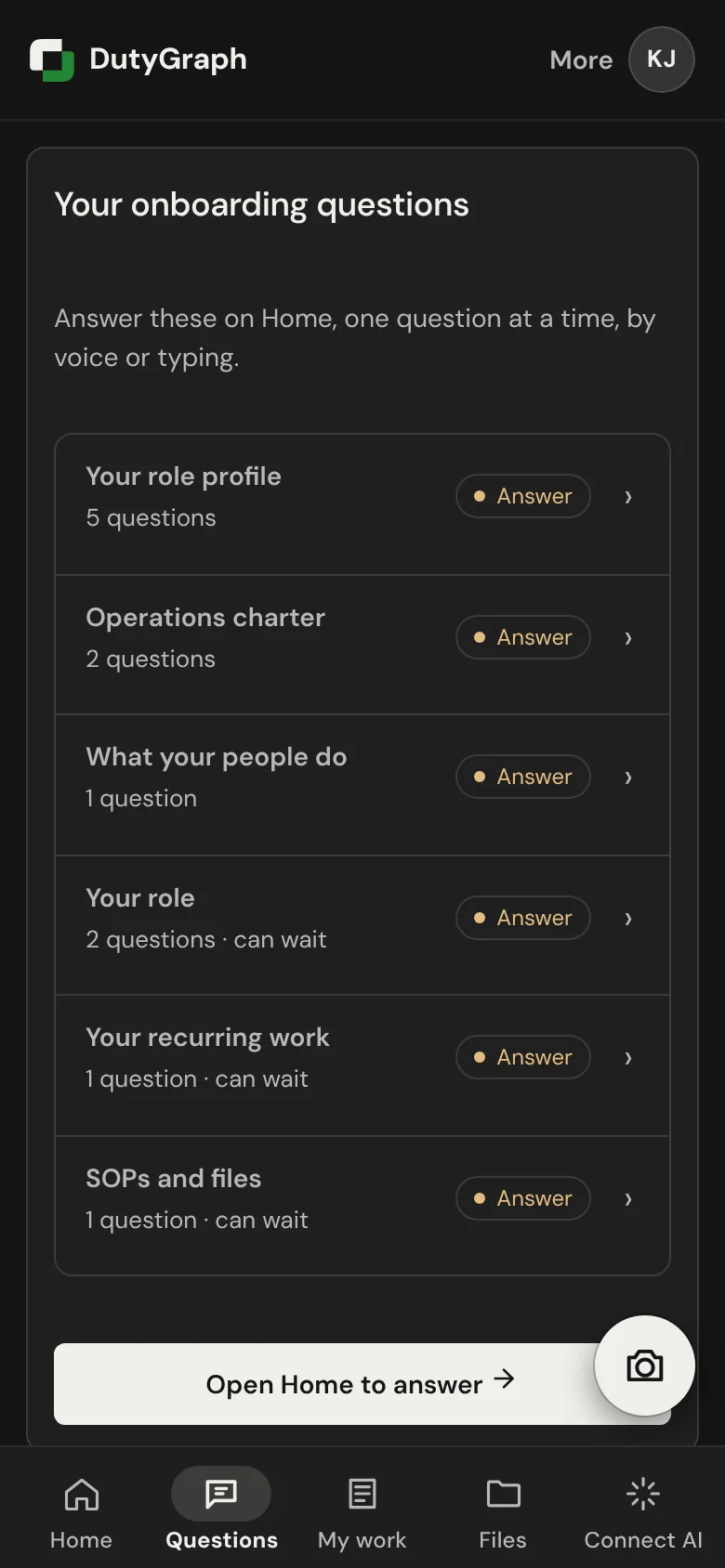
- The five main screens are buttons along the bottom: Home, Questions, My work, Files and Connect AI.
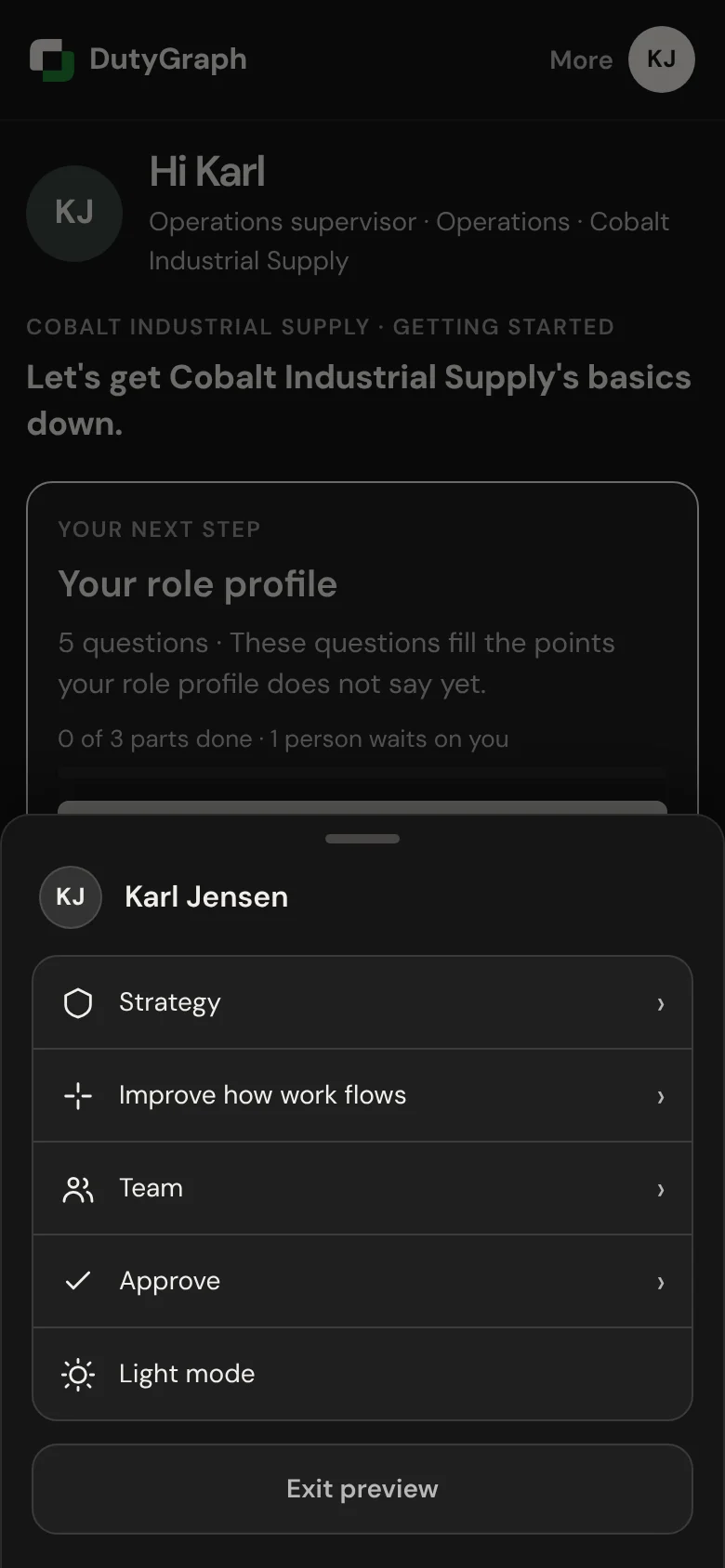
- More at the top right opens Strategy, Improve how work flows, Team, light or dark mode, and Sign out.
- More also opens Your place: where your work fits, and the card to finish next.
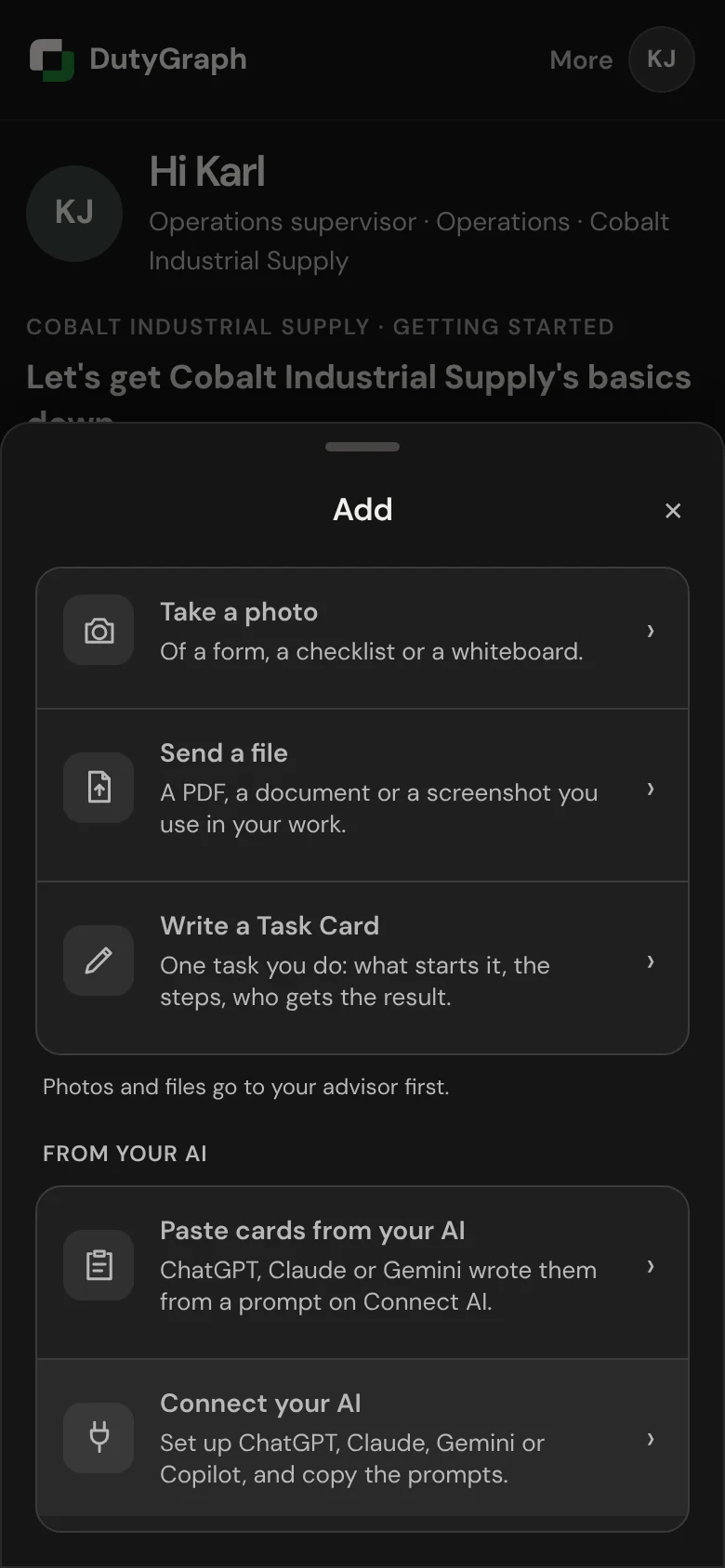
- The round button opens Add: Talk about your work, take a photo, send a file or write a Task Card. Photos and files go to your advisor first.
Answer a question
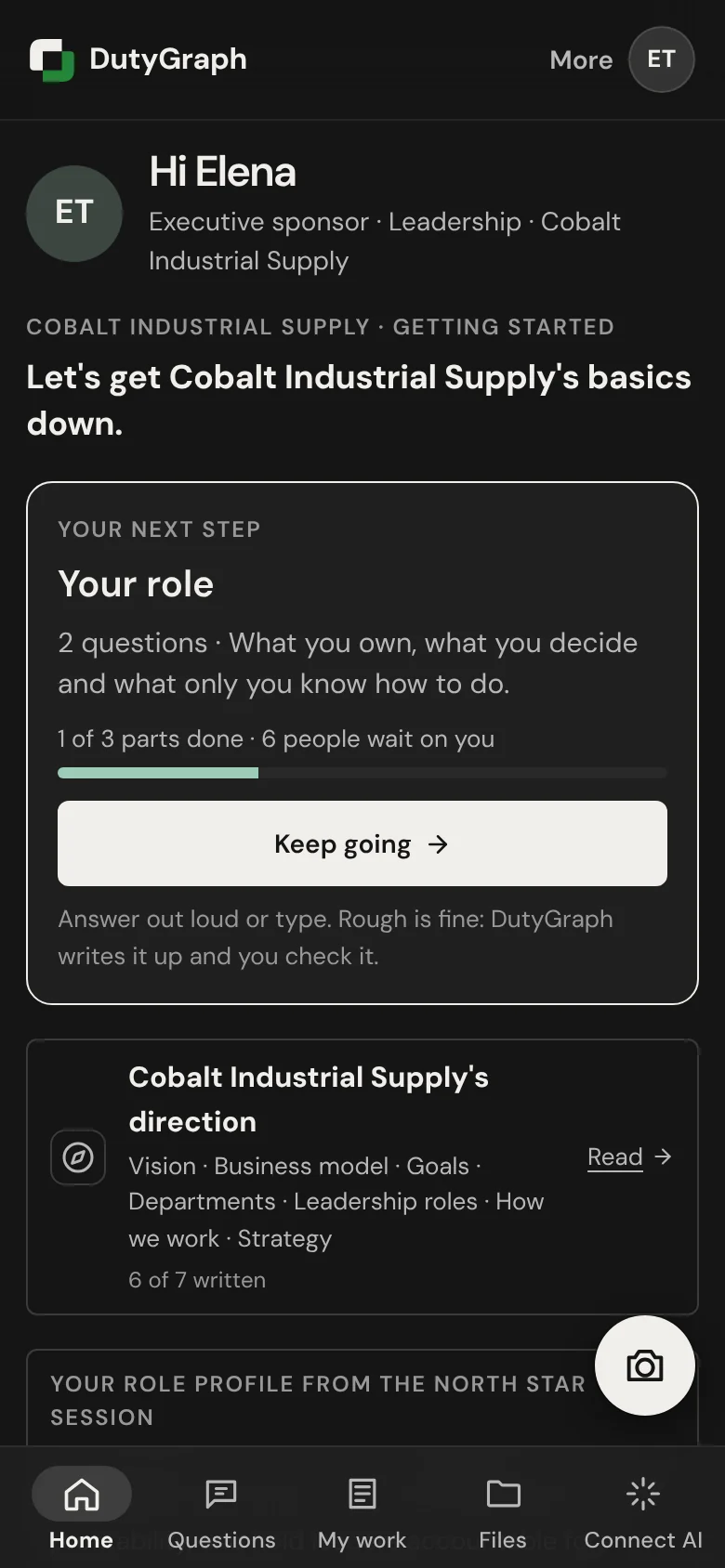
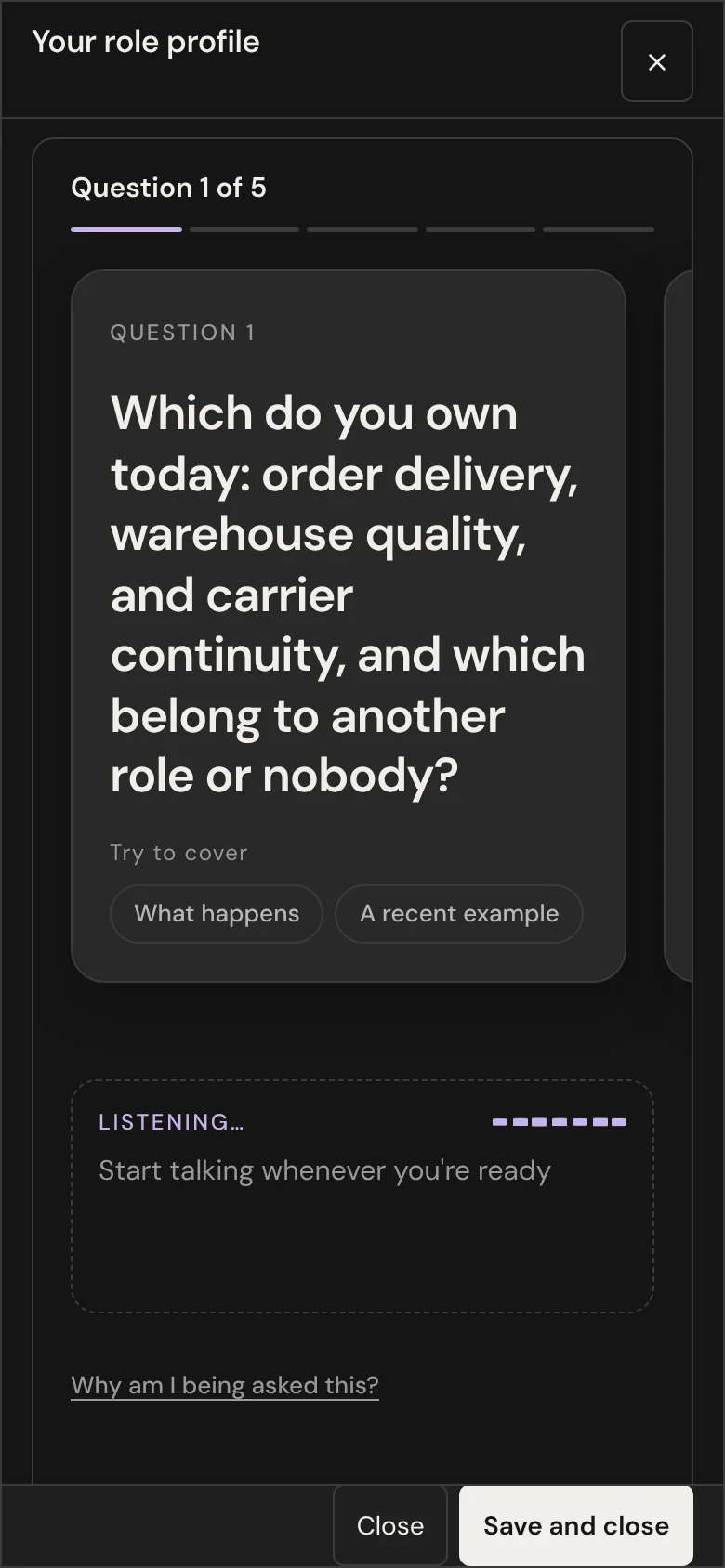
- On Home, select Start answering (or Keep going).
- Talk when the card says Listening, or select Type instead and type.
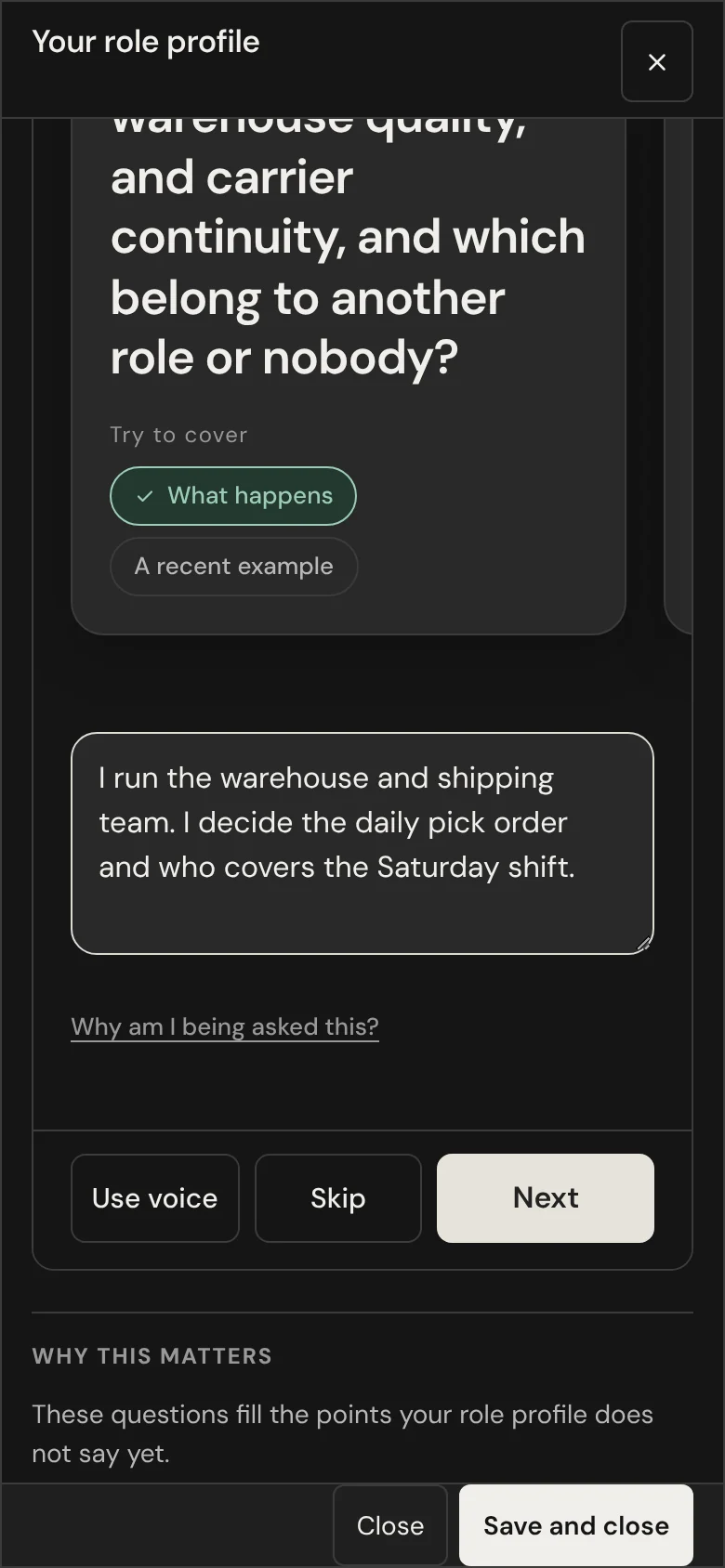
- Select Next for the next question.
- At the end, check Here's what we heard and select Save and close.
The phone shows the same cards as the laptop. Why this matters and the example answer are below the question; scroll down to read them. See Answer your questions for each step.
Talk about your work on a phone
The phone is the best place to talk. Open My work and select Talk about your work, or use the round button. Hold to talk, let go to pause, and select Done talking. DutyGraph finds your tasks and opens each one as a card with three parts. See Talk about your work.
If voice is not set up for your company yet, type instead. Your words are saved the same way.
When you are waiting
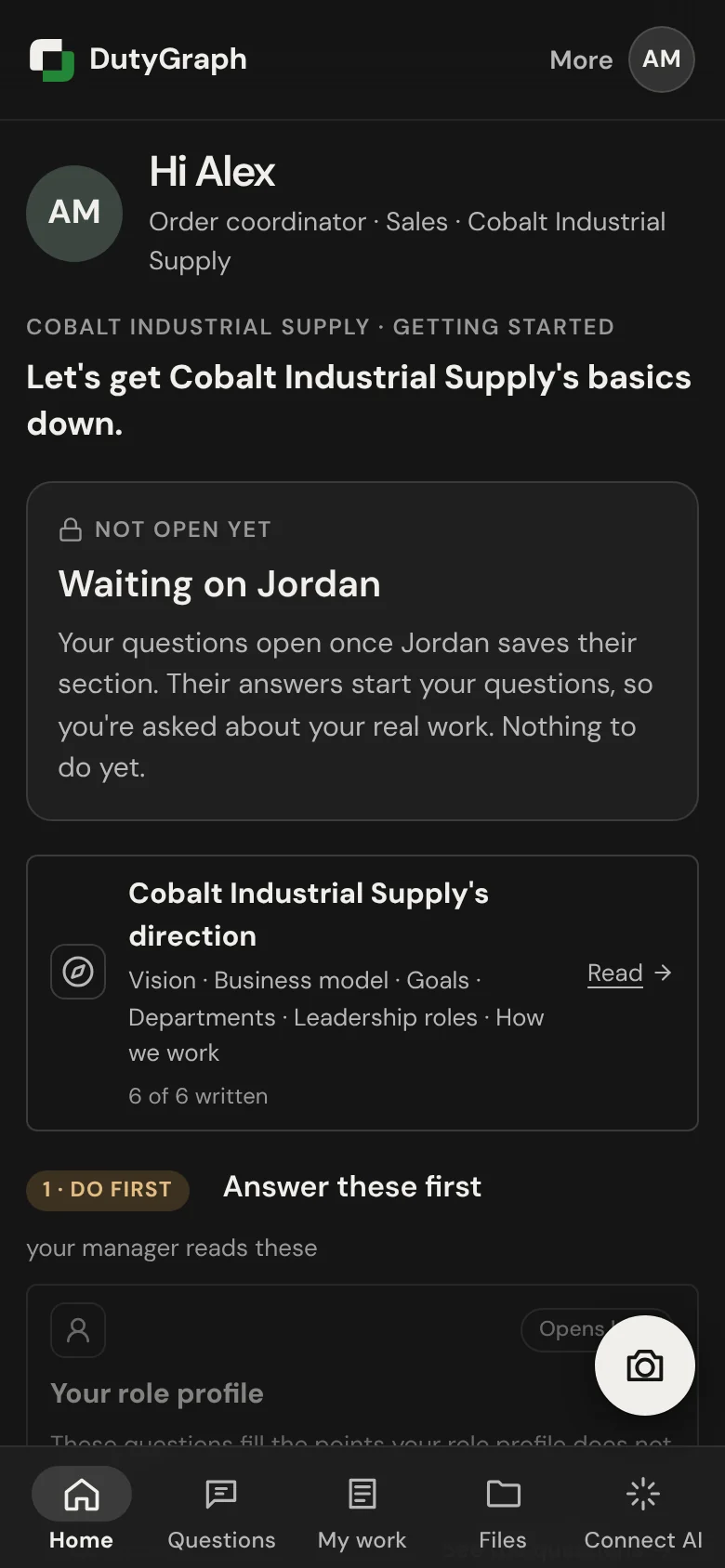
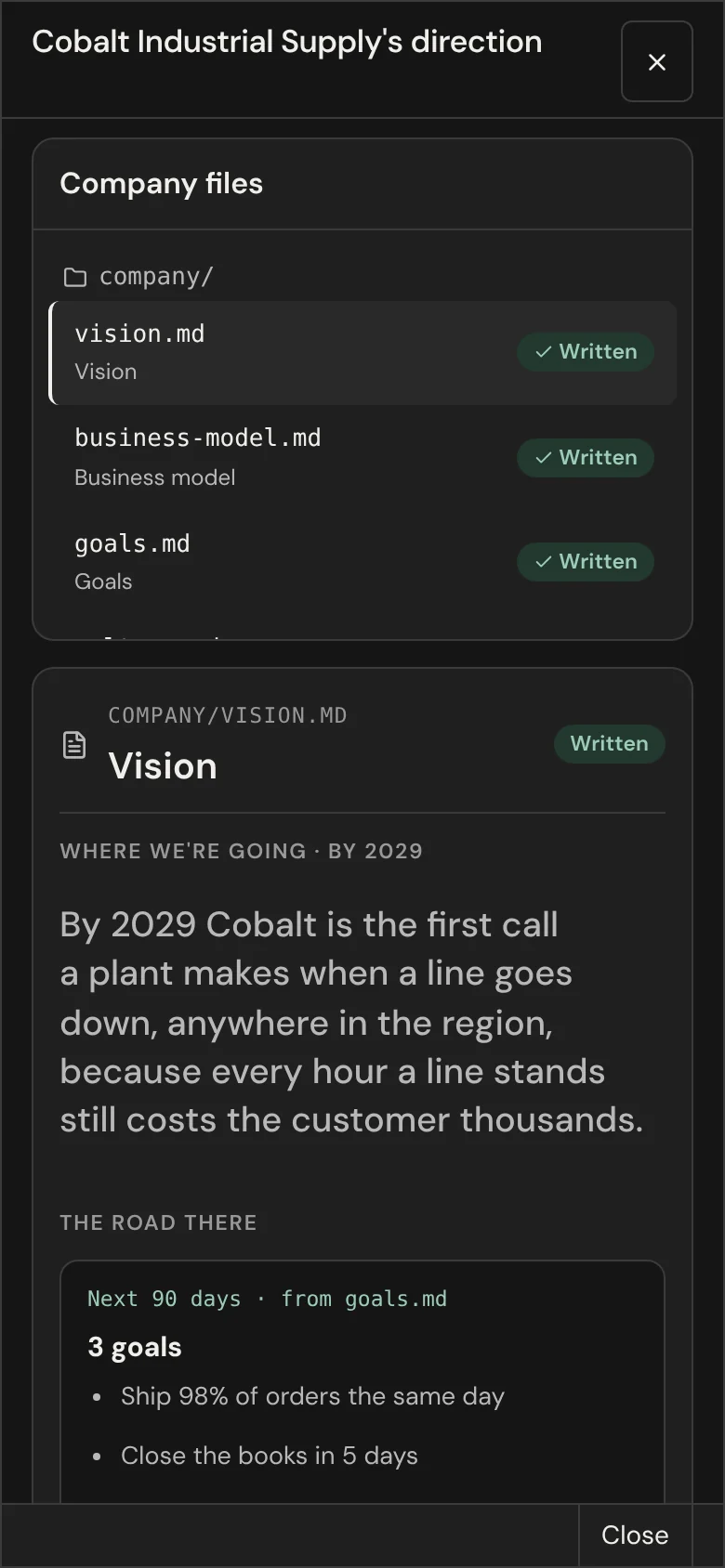
If your questions are not open yet, Home says Waiting on and your manager's name. Your questions open once they save their section. Meanwhile you can read your company's direction.
My work, Files and Connect AI