
Appearance
4. The client app
This page is for: advisors and forward-deployed engineers, who work in the advisor dashboard.
Built
The client app is what the client's people use. It works on a phone and on a laptop. Each person sees only their own records and the company files they are allowed to read.
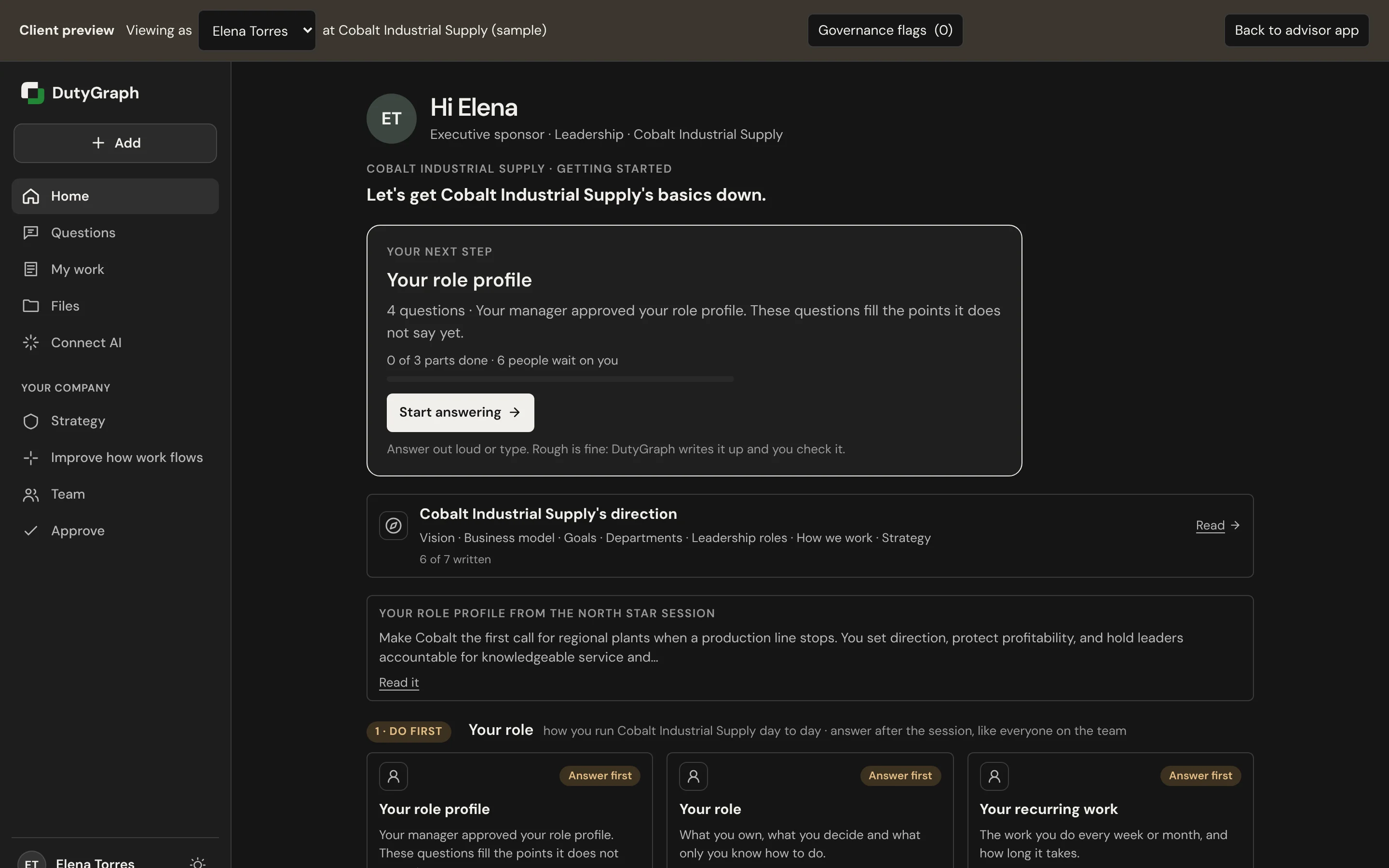
What a person sees
| Tab | What it holds |
|---|---|
| Home | Their next step, the company's direction, and their question sets in order: Do first, then Set up next |
| Questions | Their question sets and how far they are with each one |
| My work | Their confirmed Task Cards, their drafts, and notes that are not a card yet. Talk about your work, Ask DutyGraph Agent, Mentioned you checks and From your advisor questions on each card |
| Files | The company files they can read |
| Connect AI | How to connect the AI they already use |
| Strategy | The company's purpose, vision, goals and business model |
| Improve how work flows | Where work waits or breaks, and a place to suggest a better way |
| Team | What the team has shared so far, as team totals. Each person's cards, answers and files stay private |
| Your place | Where their work fits (company, department, role, Task Cards) and the card to finish next |
A question card shows one question, why it is asked, what a good answer looks like and an example. People can answer by typing or by voice, and they can add a photo or a document.
On Improve how work flows a person can suggest a better way to do a task. A person who uses their own AI assistant can also open the suggestion box there: it asks "why" until it reaches the cause, then proposes a Task Card.
Talk, the Agent and one-tap checks
These are on for every company. (An operator can turn them off with SHOW_CAPTURE_FLOW=0.)
| Feature | What the person does | What you see |
|---|---|---|
| Talk about your work | Talks or types in any order. DutyGraph finds the tasks, opens each as a card with three parts (arrives, I do, leaves) and asks only for what is missing. Lock in saves the card to My work as a draft. | Their cards and notes on their person page (Stored tab), and their step on the org chart |
| Ask DutyGraph Agent | Asks for help to make a card faster, finish a card one part at a time, time one run, or read your questions | Nothing new: the Agent only reads their own cards. Times stay on their device. |
| Mentioned you | Answers Yes, Not me or Sort of on a hand-off a teammate's card names them in | The answer beside the hand-off on the Work Map. A Yes makes it Both sides agree. See Work Map. |
| From your advisor | Answers your question on the Task Card it is about | The answer on their page and on the Work Map |
Nothing a person says is lost: a task found in Talk but not saved waits under Not saved yet with Continue, and work marked Not my task or Not mine waits under Marked not yours with It is mine.
Questions open in one tap: Answer now on Home, the Questions tab and the email link open straight on the first question card.
Voice needs the speech key
Voice turns into words only when the company has an OpenAI speech connection (an approved workspace key), or the deployment has DUTYGRAPH_PLATFORM_TRANSCRIBE_API_KEY (the OpenAI transcription key) set. With either one, Talk shows the words live while the person holds the button, and the reminder chips light up as they are covered. A sample company never calls OpenAI, so the Cobalt preview shows words only after each hold. Without it, Talk, the card and the Agent open in typing and say so. Typing works the same, and nothing is lost. Set the key before a demo that uses voice.
Without an AI connection, a talk still becomes one task per thing said, and Found tasks says "No AI is connected yet, so each thing you sent is one task. Your words are saved."
In your Client app preview the person's screens are read only. A save says "This is a preview. Nothing is saved or sent as this person." On a sample company you may answer questions, Mentioned you checks and decisions from a Work Map fix in the preview.
The Earn tab is hidden. Cash for Task Cards is Planned.
Get people in
| Way | How |
|---|---|
| Send app link | On a person's page, select Send app link. You see the exact email first. You can send it again at any time. Copy link gives you the link to send yourself. |
| Ready to send | On the org chart, send the invite when a person's level opens |
| Team sign-in link | One link for the whole company: /join/<company name>. A person enters their work email and gets a sign-in code. |
Nothing is emailed to a client's team until you send it.
The app link, Ready to send invitation and North Star questions emails come from DutyGraph, not from you: the From name is DutyGraph and replies go to you. The address is DUTYGRAPH_APP_EMAIL_FROM when the deployment sets it on your sender's domain, else your workspace sender address. Emails you write as yourself (the package, the Readout share) still come from you.
Before Send app link works
Do these two things one time.
- Set up email. Open Settings › Research & AI keys and find the Resend card. Enter your Resend API key and a Verified sender email. The sender must be on a domain that you verified in Resend. Save, then select Test on the card.
- Turn on the team sign-in link for the company. You can turn it on in Settings › Workspace, or in the pop-up that opens when you select Send app link.
If one of them is missing, the pop-up tells you which one. Copy link works without email.
See it as they see it
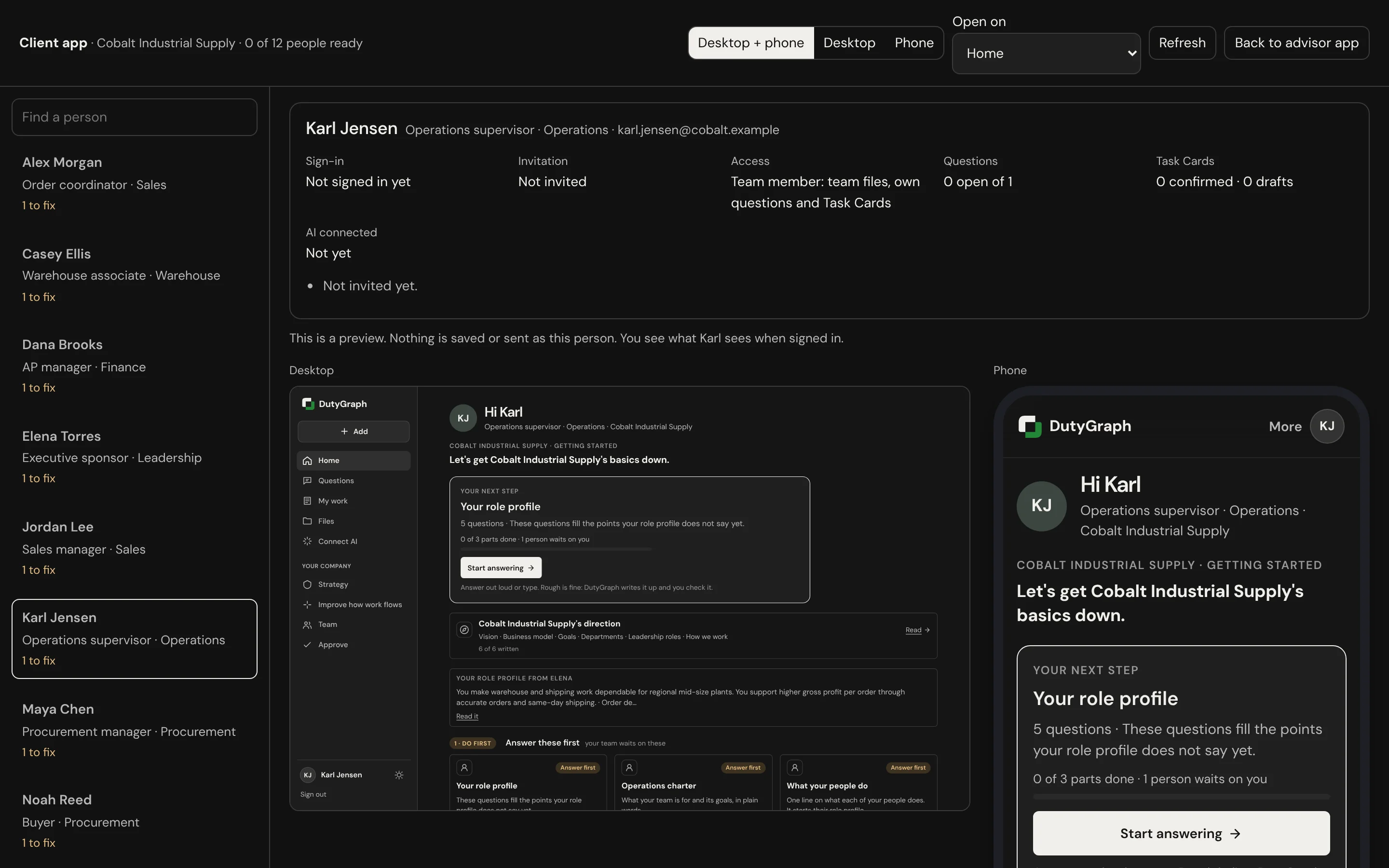
Select Client app in the header to open the preview as a chosen person. Use it before a call to check what each person will see. On a sample company you can also answer questions in the preview.
The Client app page lists the company's people on the left, with a count of how many are ready. Select a person to see:
- What they can reach: Sign-in, Invitation, Access (team member or leader), Questions open, Task Cards confirmed and drafts, and AI connected. If they connected an AI app, Disconnect ends every connection, for example when someone leaves.
- What still stops them on day one, such as "Not invited yet." Each person shows Signed up, Invited or how many things are left to fix.
- Their app on a desktop and on a phone, side by side. Choose Desktop + phone, Desktop or Phone, and pick the first screen with Open on.
The screens are the real client app, answered as that person and read only. Nothing is saved or sent as them.
Teach the team
The team guide is written for the client's people, with screenshots on a laptop and a phone. Share it, or walk through it on the kickoff call:
- The client app: what it is, how to sign in, the main screens.
- Answer your questions: Home, Do first, a question set, saving a section, and what "Waiting on" means.
- My work, Files and your company
- Connect your AI
- On your phone
Help someone who is stuck
- Open the person's page in Departments and roles. The Steps tab shows each step of their app top to bottom (Opened the app, Your role, Talk, Found tasks, The card, Lock in) with Done, On it now, Stuck or Not yet. A stuck step opens Why [name] is stuck.
- Send a note with Send to [name]'s app, or Have the Agent rewrite it first. If the app link is the problem, Send app link and Copy link are in that box.
- If a question is unclear, rewrite it on the Questions tab or have DutyGraph Agent™ write a better one, then send it.
- If they are away, you can answer for them. Their card shows that the advisor did it until they select Looks right.
From the terminal:
sh
dutygraph stuck                 # who has not moved
dutygraph nudge lee@example.com --reason add_cards   # prepare a reminder
dutygraph ask lee@example.com "What starts this task?" --title "Task details"
dutygraph inbox                 # new answers
ask makes a draft. It sends email only with --send and a token that has the Send email scope.
What the team is told
People need to hear three things before they open the app:
- What they share is used to describe the work, not to rate them.
- DutyGraph does not track breaks or how fast they answer.
- They check everything written about their role before it is final.
See Trust and privacy.