
Appearance
Answer your questions
This page is for: the client's team, who use the client app on the web or on a phone.
Built
Your questions are short and about your own work. Rough answers are fine: DutyGraph writes them up and you check the result.
Start on Home
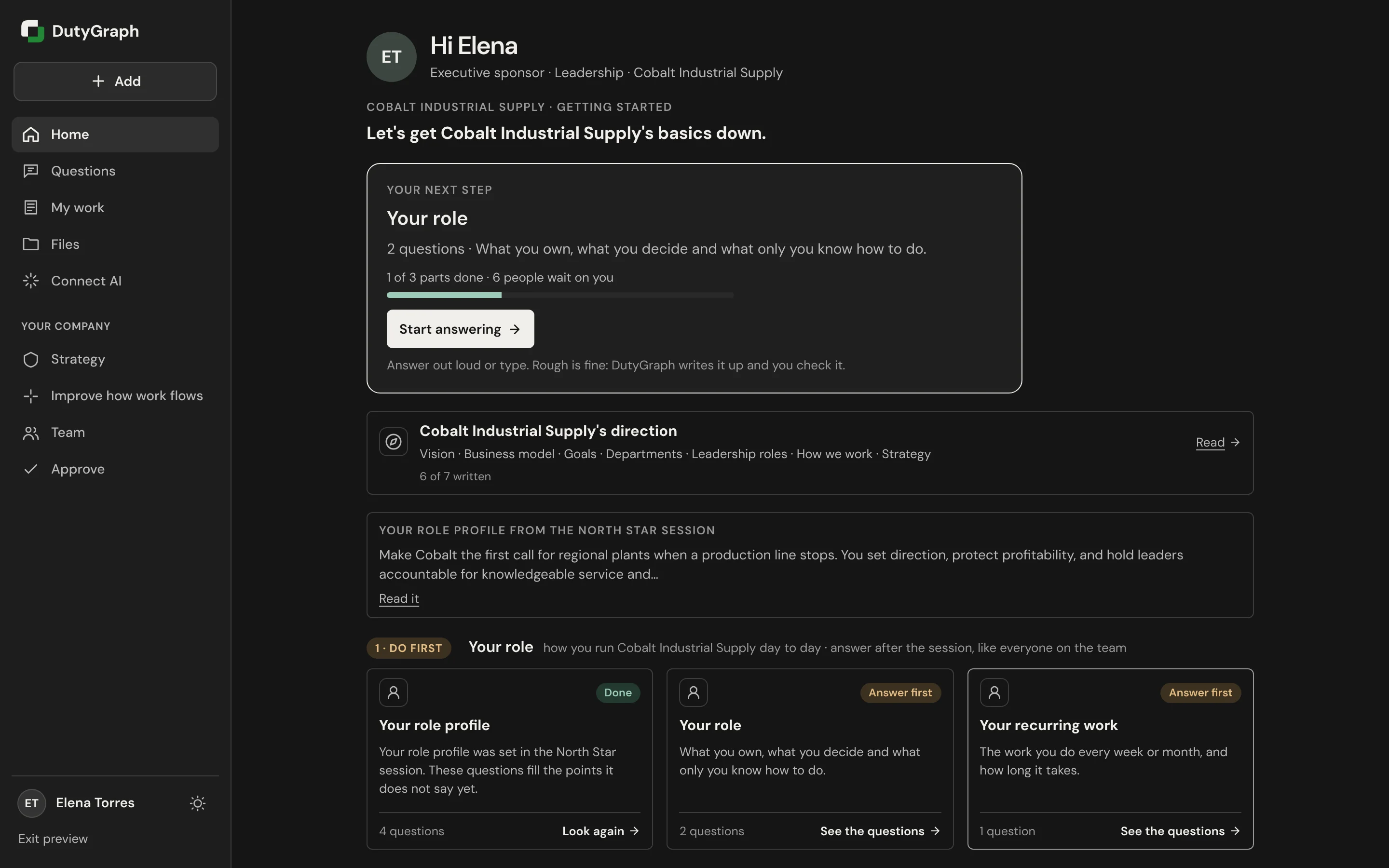
Home shows Your next step at the top. It names the question set to answer now, how many questions it has, and how many parts you have done. Select Start answering to open it. If you stopped part way, the button reads Keep going.
Below it you see:
- Your company's direction: what the company agreed. Select Read to open it. See My work, Files and your company.
- Your role profile: a short summary of your role from your manager or from the company's planning session. Select Read it to see all of it.
- 1 · Do first: the question sets that others wait on. Answer these first.
- 2 · Set up next: question sets nobody waits on. They can wait until the first group is done.
Each card shows its state, such as Answer first, Not started or Done, and a See the questions link.
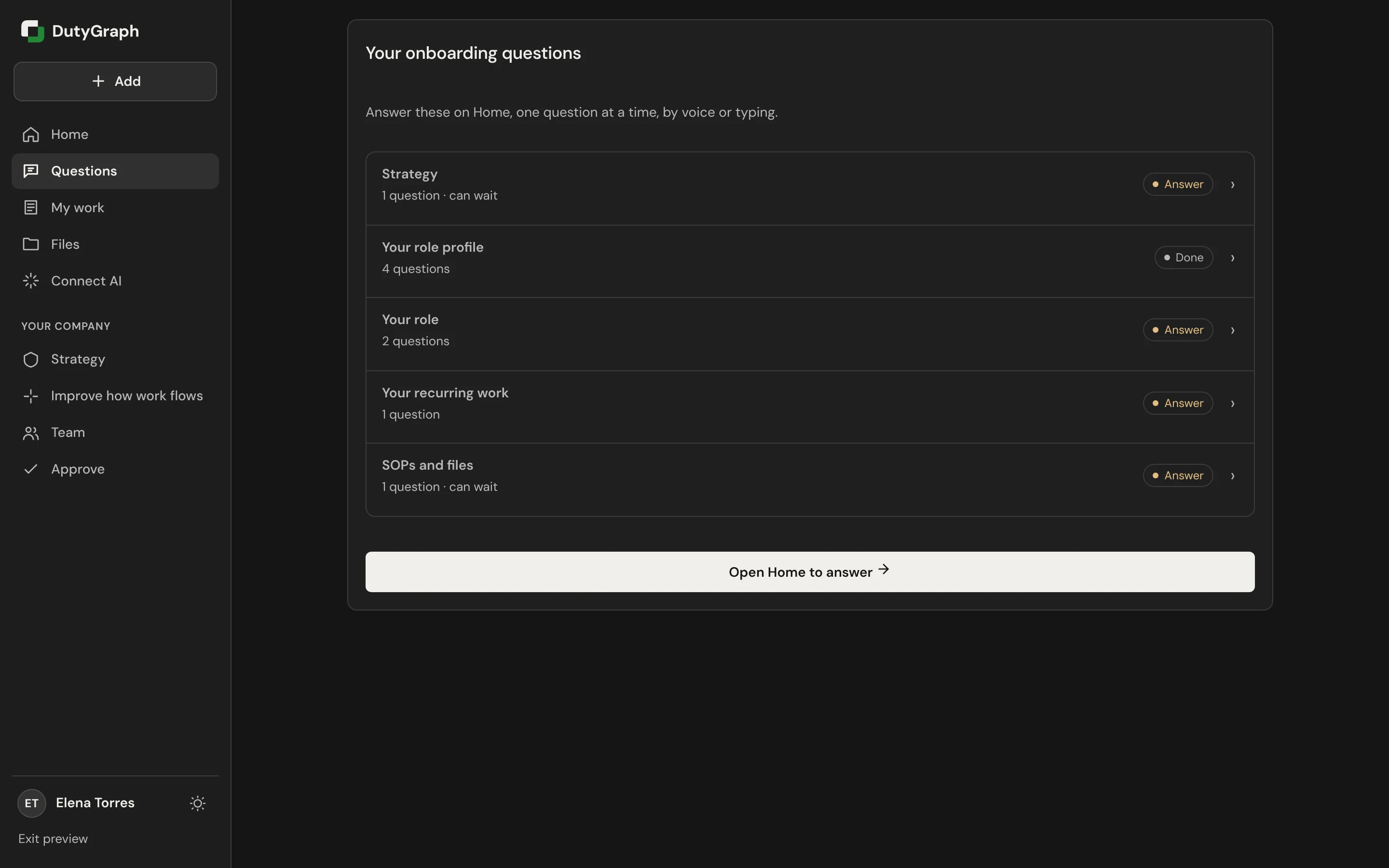
The Questions screen lists the same question sets with their state. To answer, select Open Home to answer.
Questions your advisor sent
When your advisor sends you questions, Home shows them at the top with Answer now. Answer now, the Questions tab and the link in your email all open straight on the first question card. There is no page to read first. Why am I being asked this? on the card explains it in one line. Back on the first card takes you to where you came from.
A question about one of your Task Cards also shows on that card in My work, under From your advisor. It is the same question, so you answer it once. See My work.
Answer a question set
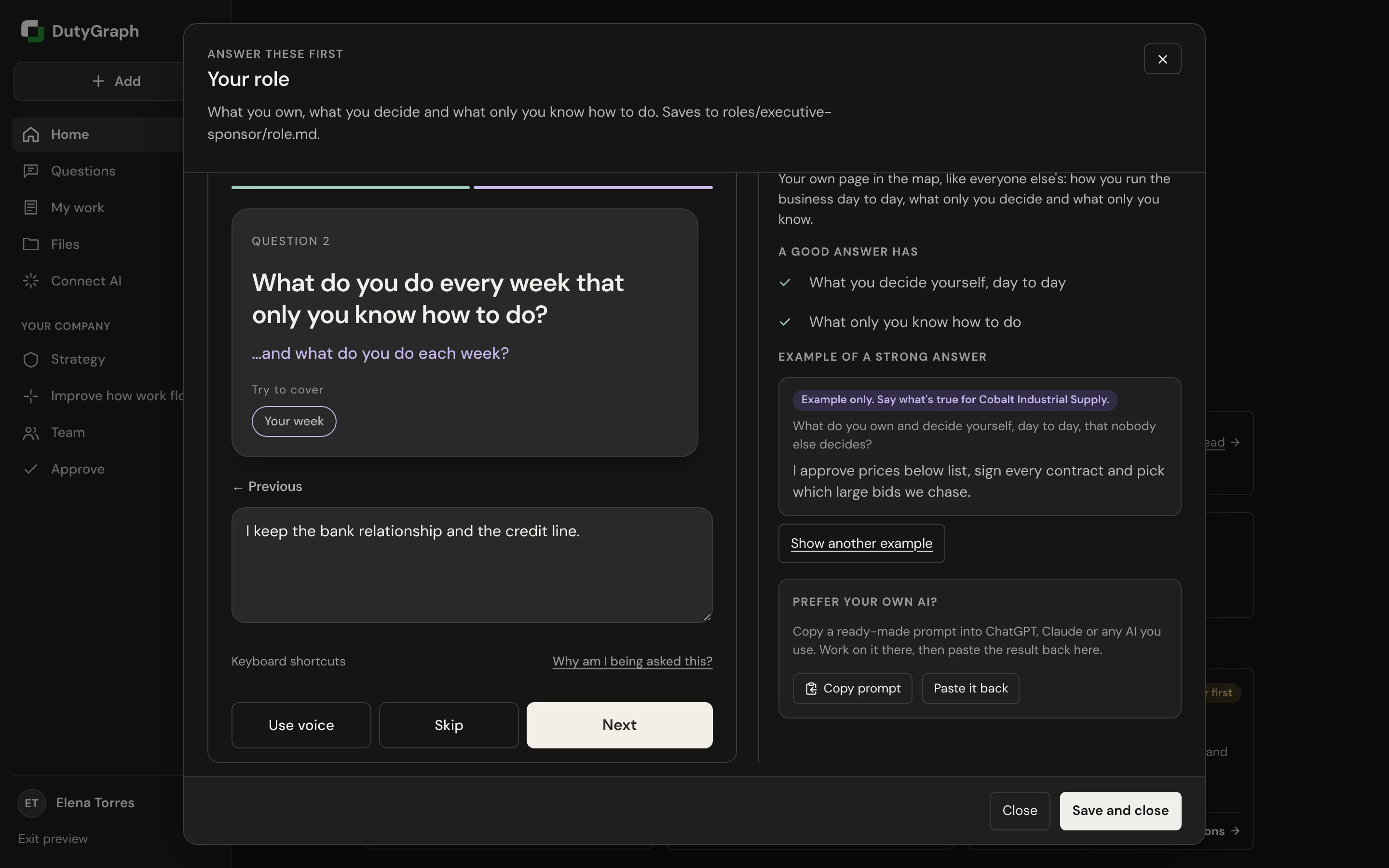
A question set opens one question at a time. Above the question you see where you are, for example Question 1 of 4.
Each question card shows:
- Try to cover: the points a full answer touches. A point gets a tick when your answer covers it.
- Why this matters: why you are asked.
- A good answer has: what to aim for.
- Example of a strong answer: an example only. Say what is true for your company. Select Show another example for a different one.
By voice
If your browser can use your microphone, the card starts listening. Talk whenever you are ready. Select Type instead to switch to typing.
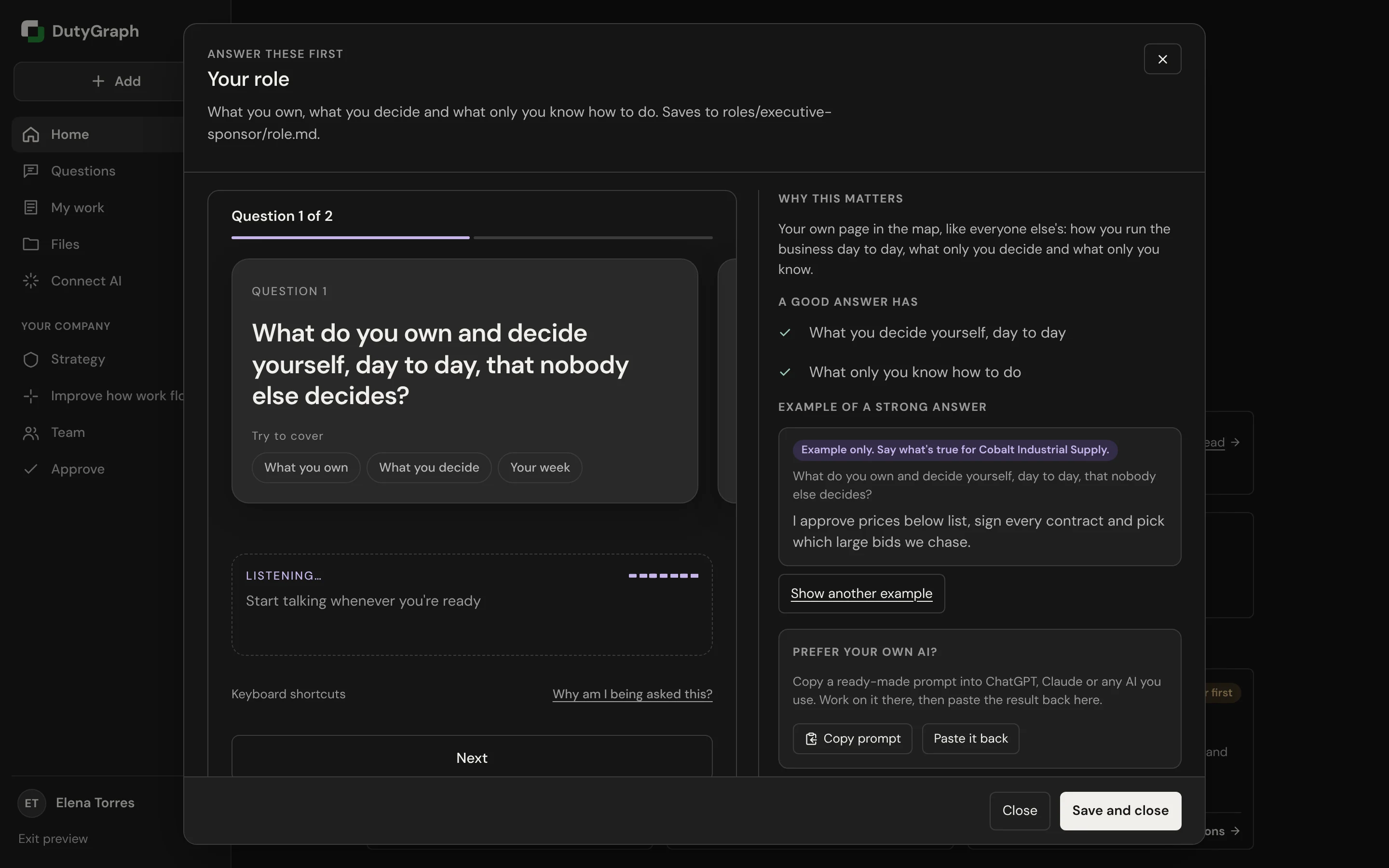
If the browser cannot use the microphone, or your company's speech set-up is not done yet, the card says so and you type instead. You get the same cards and the same review.
By typing
- Type your answer in the box.
- Select Next, or press Enter. Shift and Enter start a new line.
- Select Skip to leave a question for later. Select Use voice to speak again.
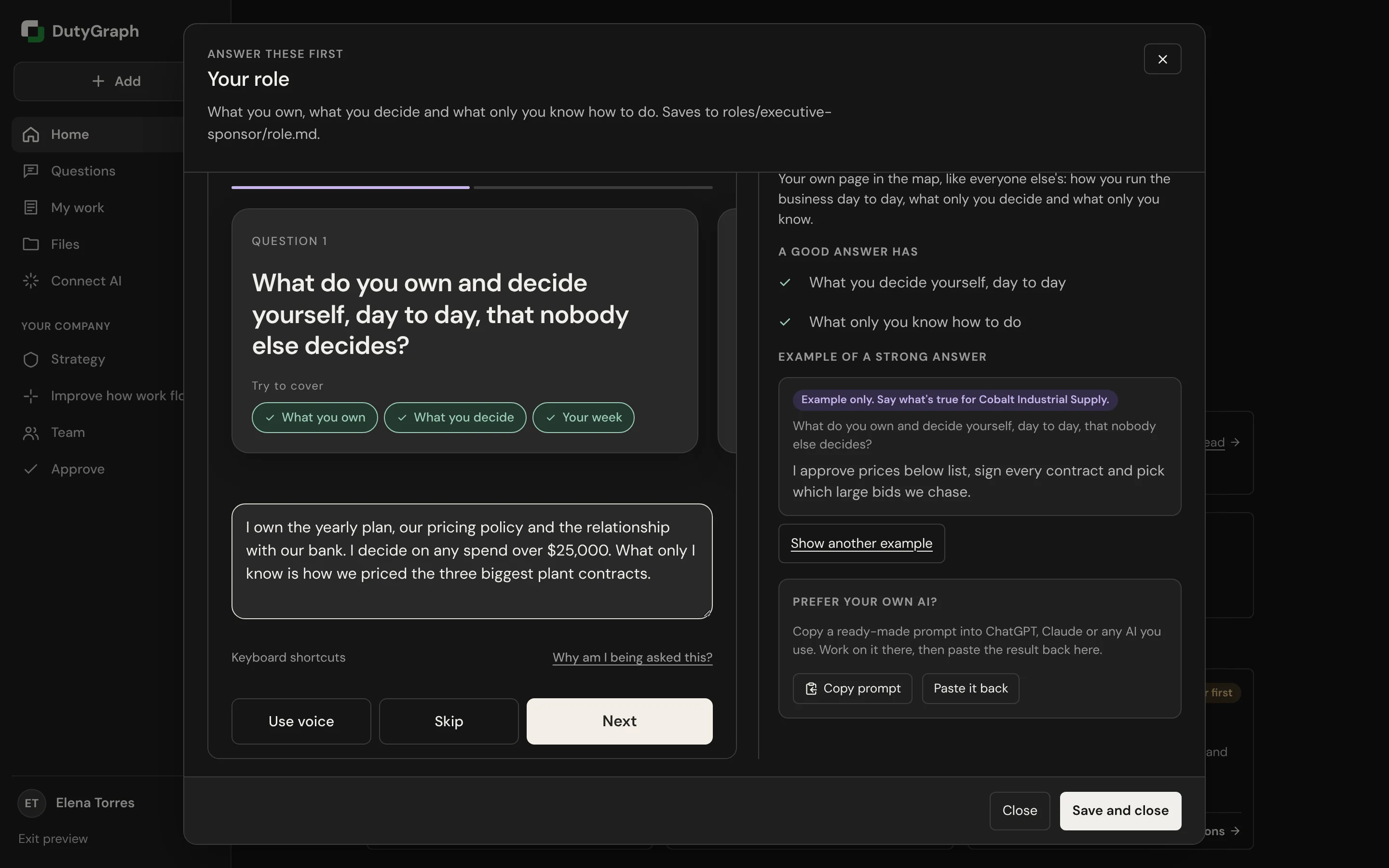
If your answer misses a point, the card asks a short follow-up, for example "...and what do you do each week?". Add a line to your answer and select Next again, or select Next to move on as it is.
Check and save
After the last question you see Here's what we heard: every question with your answer. Fix anything that is off, then select Save and close. You can come back any time.
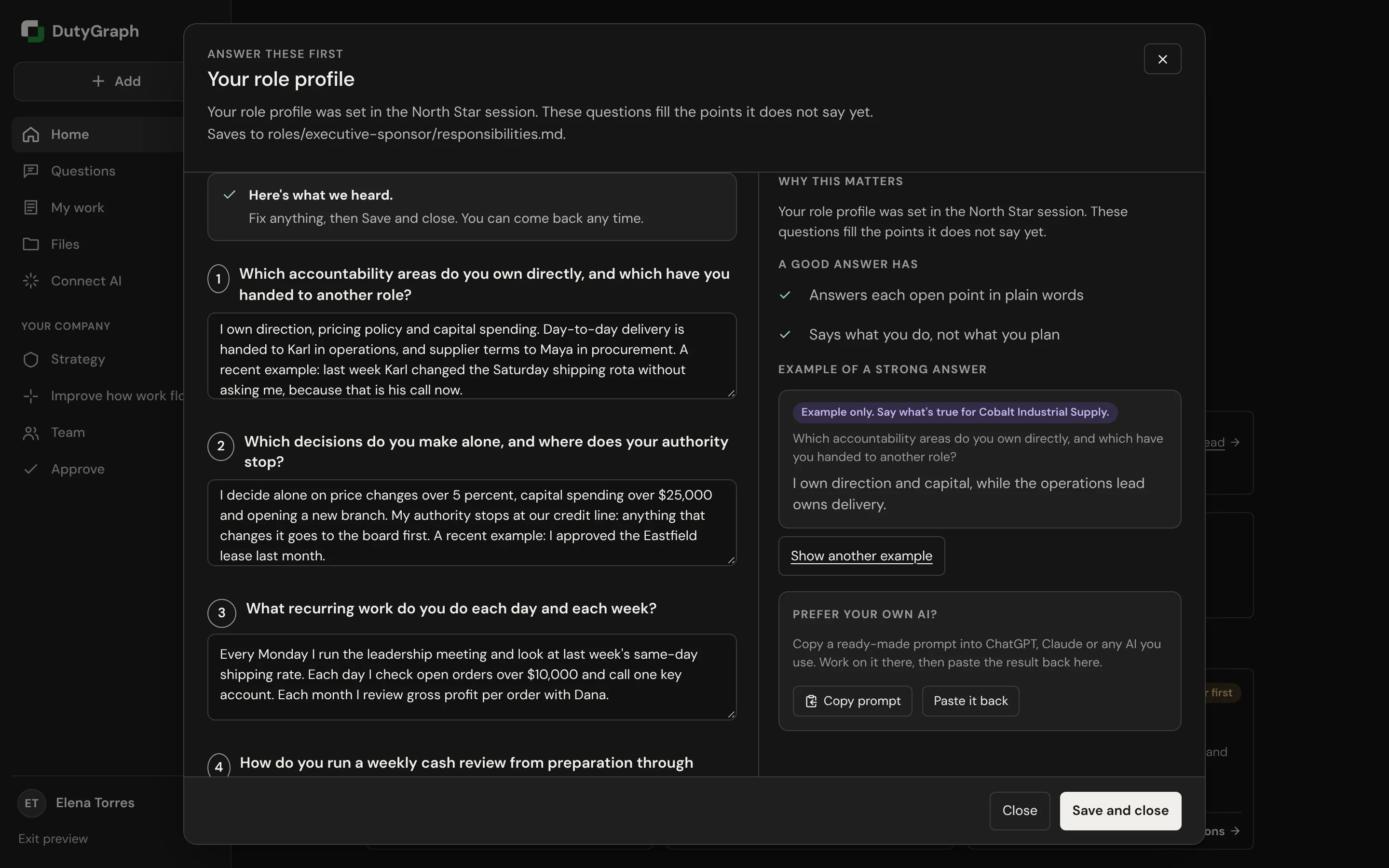
Save and close also keeps what you typed if you stop in the middle. Close leaves without saving the open card.
The question set shows where your answers are saved, for example roles/executive-sponsor/role.md. That is your role's file in the company files.
Prefer your own AI?
Each question set has a Prefer your own AI? box. Select Copy prompt, work on the answers in ChatGPT, Claude or another AI you use, then select Paste it back. See Connect your AI.
Save your section
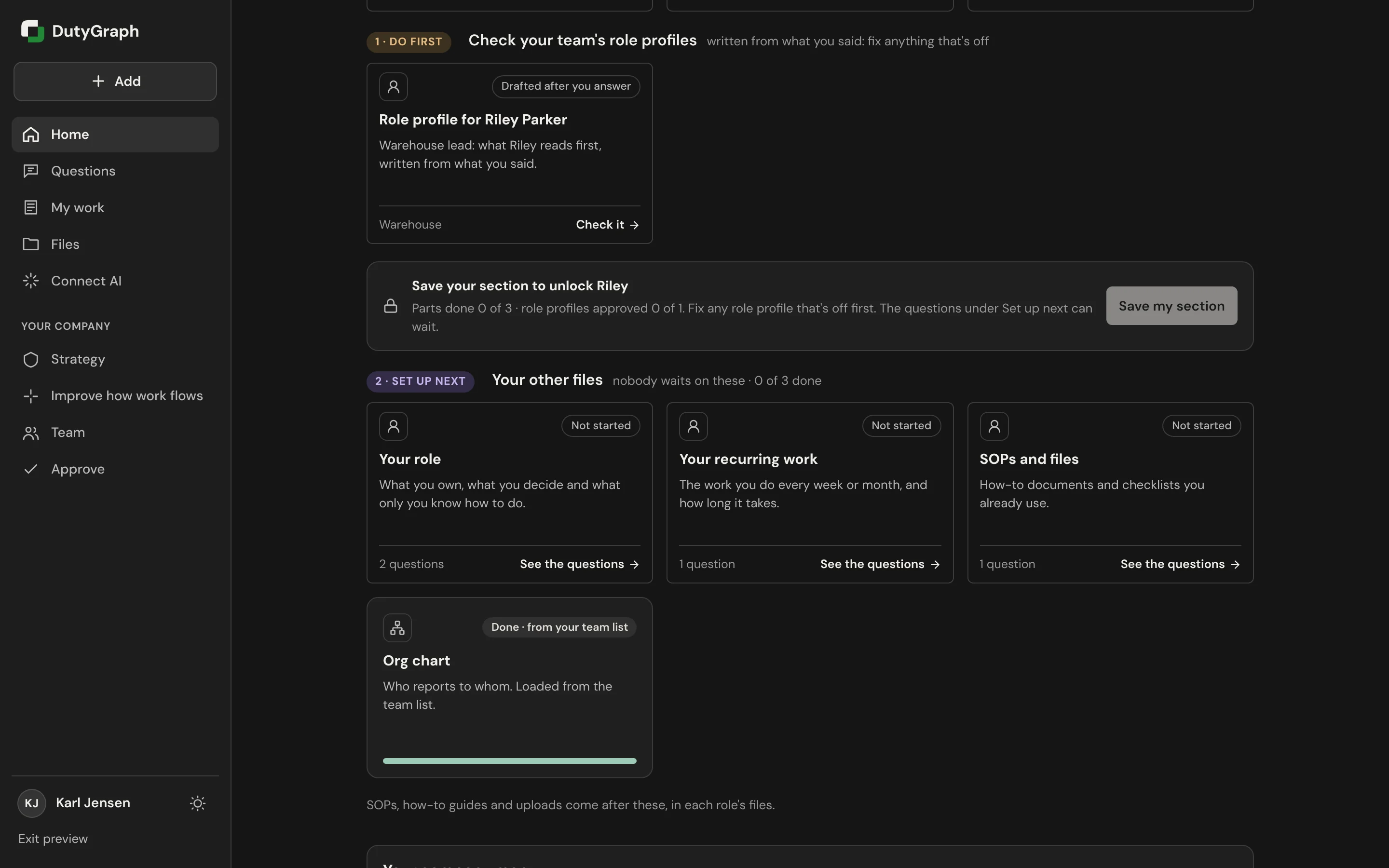
If people report to you, Home also shows Check your team's role profiles. These are short profiles of your people, written from what you said. Select Check it on each one and fix anything that is off.
When your parts are done and the role profiles are approved, select Save my section (the top person sees Save my part). Saving opens the questions for the people who report to you. The button stays grey until everything it needs is done, and the box says what is still missing.
"Waiting on" your manager
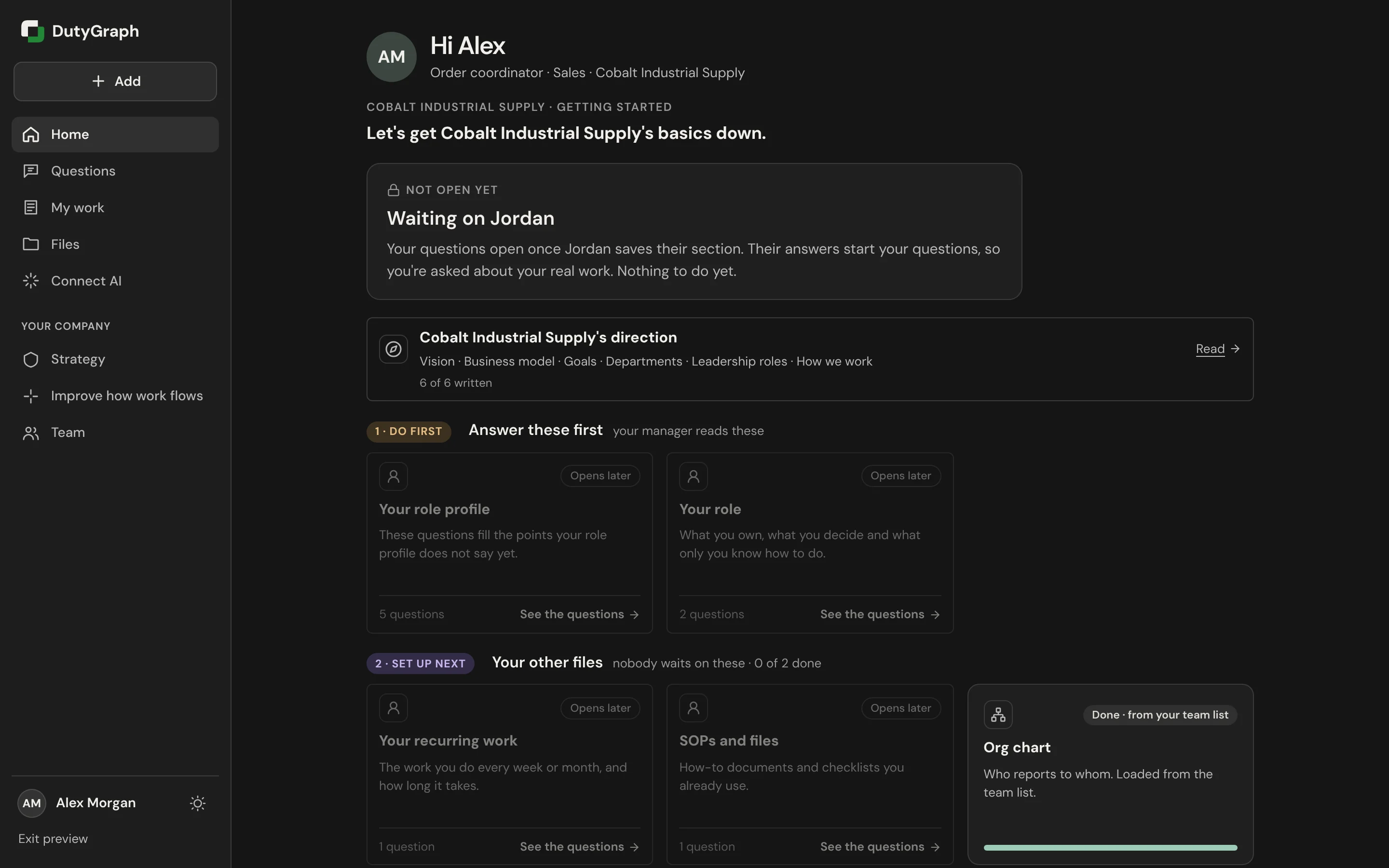
Your questions start from your manager's answers, so you are asked about your real work. Until your manager saves their section, Home shows Not open yet · Waiting on and your manager's name, and your cards say Opens later. There is nothing to do yet. You can still read your company's direction and your files.
Lower on Home, Your company map shows everyone in the company and where each person is: locked, open, answering or complete. A locked person shows who they open after.