Appearance
My work, Files and your company
This page is for: the client's team, who use the client app on the web or on a phone.
Built
My work
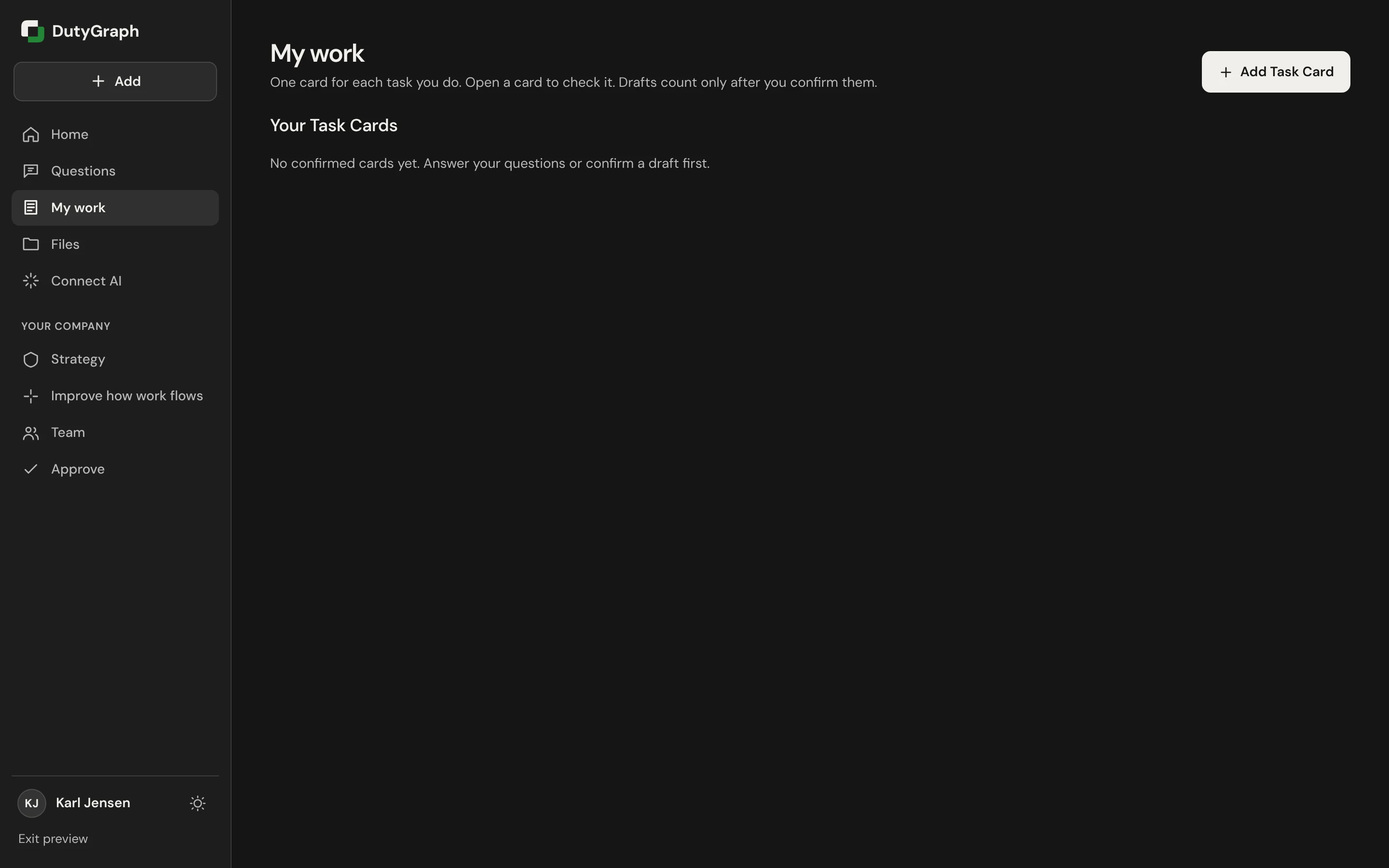
My work holds your Task Cards. A Task Card is one task you do: what arrives, what you do, and where it goes. Open a card to check it.
Drafts count only after you confirm them. Before you have any cards, the page says so: "No confirmed cards yet. Answer your questions or confirm a draft first."
Talk about your work
The easiest way to make Task Cards. Select Talk about your work in My work, or in the Add sheet.
- Talk. Hold the button and talk about your work in any order: what you do on a normal day, who sends you things, who you send things to, what eats your time. Let go when you pause. Your words show on the screen while you hold, and you can tap them to fix a word. The reminder chips (what you do on a normal day, who sends you things, who you send things to) light up green as you cover them. Select Done talking when you are finished.
- Found tasks. DutyGraph sorts what you said into tasks. It also keeps what is not a task (an idea, someone else's work, something you used to do) under Heard, not a Task Card. Your words are kept as you said them. Check the names: Did I get the names right?
- The card. Each task opens as a card with three parts: where the work arrives from, what I do, and where it leaves to. Each part is written as one short, plain sentence from what you said, with your names, numbers and tools kept; your exact words are kept with it. The card asks only for what is missing, including when the work starts and what done means. A missing line shows in yellow with Say this; a line you said gets a green check. Hold and say it, type it, or select I don't know. Tap a line to change only that line. Save as is keeps the card even with a part missing. When work comes from or goes to someone outside the company (a customer, a vendor, whoever wrote in), the line shows Outside the company.
- Lock in. When all three parts have words, the card is locked in and goes to My work as a draft for you to check.
If no AI is connected yet, each thing you said becomes one task. Nothing is lost.
Voice
Voice needs your company's speech set-up. Until it is set up, Talk opens in typing and says "Voice is not set up yet, so type instead. Your words are saved the same way." Typing works the same way.
If your phone loses its connection, the words you have not sent stay on the phone and come back when you open Talk again.
If you leave Found tasks before you save a task, it waits in My work under Not saved yet. Select Continue to open its card again.
If you mark a task Not my task in Talk, or a draft Not mine, it is kept under Marked not yours. Select It is mine to bring it back. Right after Not mine you can also select Undo, and an open draft has It is mine after all.
Ask DutyGraph Agent
Ask DutyGraph Agent is at the top of My work and on each open card. It is a short chat about your own cards:
- Help me make this faster: ideas to save time on one card.
- Help me finish this card: it asks for one missing part at a time. Skip this one or Stop for now at any point. What you add is saved on your card.
- Start this task: time one run of the task. Your times stay on your device. Only you see them.
- Questions from your advisor: the questions your advisor sent you, with Go to Home to answer them.
You can also type or hold the mic and ask anything about your work. The Agent needs your company's AI connection; without it, it says so and works from the words on your card.
Mentioned you
When a teammate's card says they hand work to you (or get work from you), and your own card does not say so, Mentioned you at the top of My work asks you with one tap:
- Yes: that is right.
- Not me: that is not my work.
- Sort of: add a few words.
Your advisor sees your answer on the company's map. You can change it at any time. If either card changes later, you are asked again.
A decision from your advisor
When your advisor asks the team how to fix a step nobody owns, you get an alert at the top of Home and a card on Home and in My work:
- Decide together: pick one of the ways, or A different idea, or Not mine to say, and say why by talking or typing. After you answer you see what the others picked. You can change your answer until the decider picks.
- You decide (if you are the decider): read the answers and pick the way.
- New step on your Task Cards (if the step comes to you): Accept puts you on the Task Card, or This isn't mine with a reason.
- Quick check: one question to test an idea first. For your info: a note, nothing to do.
Accepting your side of a hand-off confirms it on your company's map. Nothing on your Task Card changes until you accept.
From your advisor
When your advisor has a question about one of your Task Cards, it shows on that card under From your advisor, with a box to answer. It is the same question as on Home, so you answer it once. Select Change answer to change it.
Add
Select Add at the top of the menu (on a phone, the round button) to:
- Talk about your work: the first choice. See above.
- Send a file: a PDF, a document or a screenshot you use in your work.
- Take a photo (on a phone): of a form, a checklist or a whiteboard.
- Write a Task Card: one task you do.
- Paste cards from your AI, or Connect your AI.
Photos and files go to your advisor first.
Your place
Your place (in the More menu on a phone, and in the menu on a laptop) shows where your work fits, top to bottom: your company and where it is going, your department, your role, and your Task Cards. Each card says locked in, ready, how many parts are missing, or not mine. Come back to names the card to finish next. The big button at the bottom opens Add.
Files
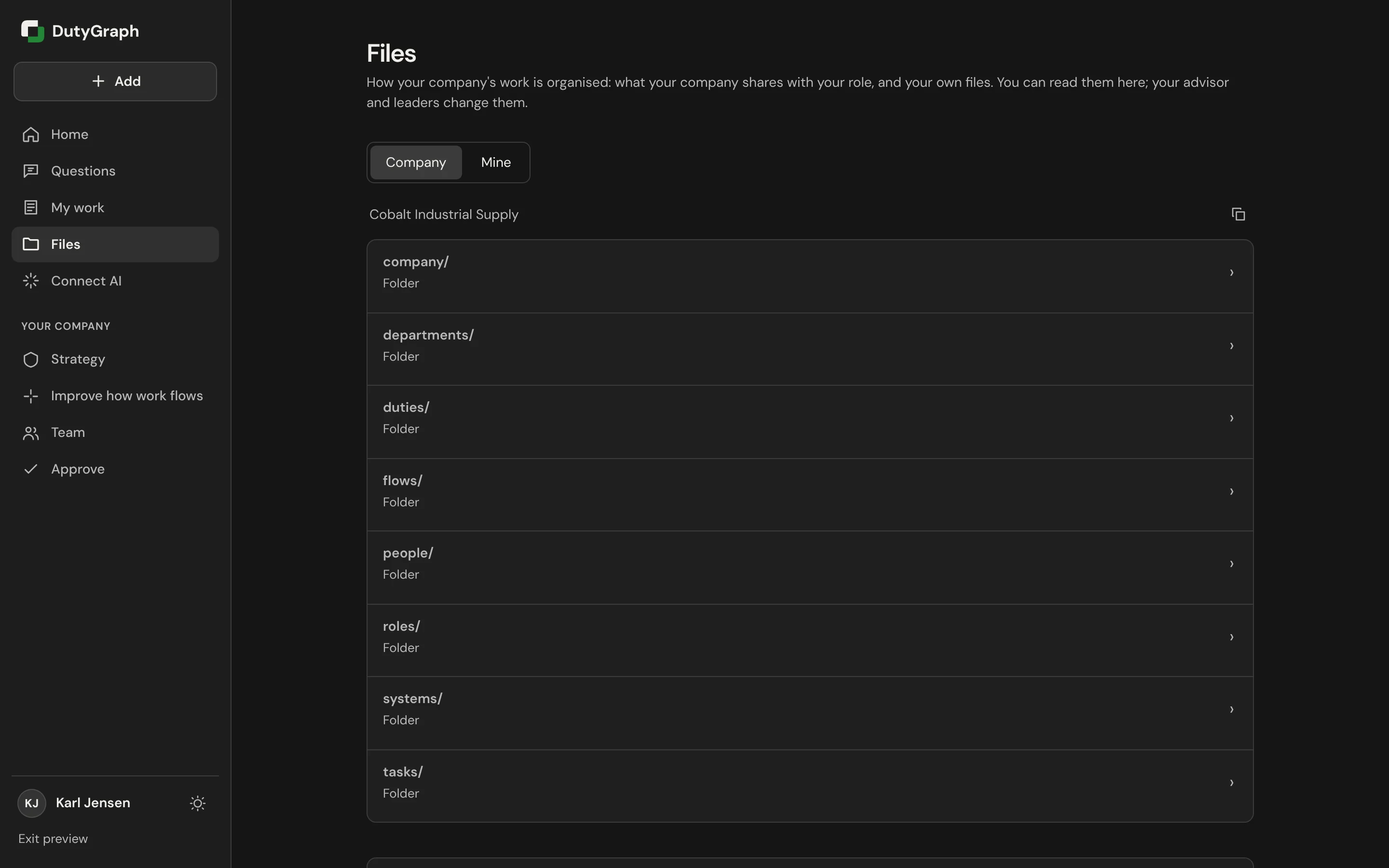
Files shows how your company's work is organised. Under Company are the folders your company shares with your role, such as company/, departments/, roles/ and tasks/. Under Mine are your own files.
You can read the files here. Your advisor and your leaders change them.
To send a file you use in your work:
- Scroll to Upload a file under the folders.
- Select Choose a file, or drop the file on the box. PDF, photo, Word, Excel, PowerPoint, CSV or text, up to 4 MB.
- Your advisor reads it first. It joins the company files only if they add it.
Your company's direction
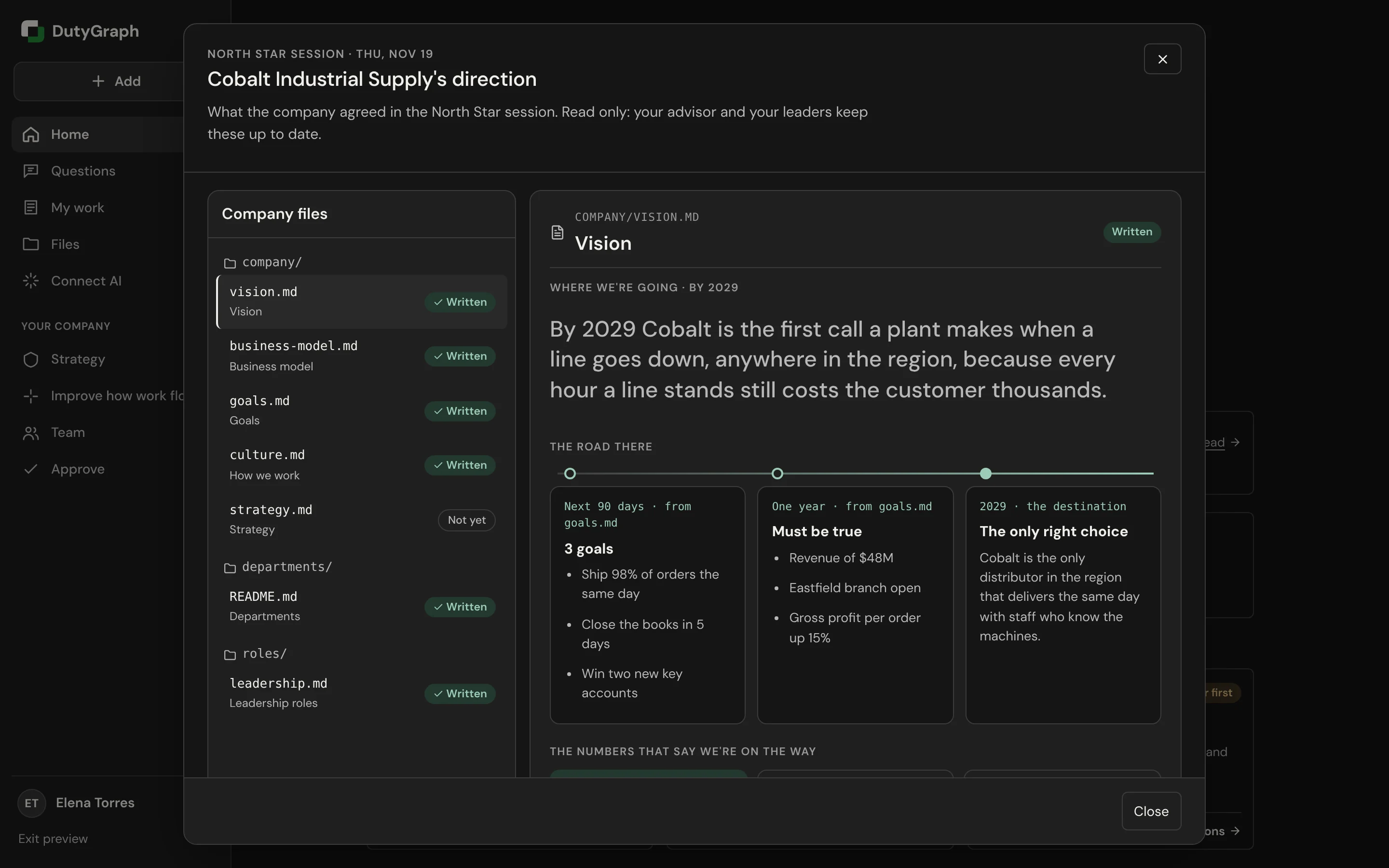
On Home, the direction card lists what the company agreed: vision, business model, goals, departments, leadership roles and how you work. Select Read. Each file opens on the right, and the list on the left shows which ones are Written and which are Not yet.
It is read only. Your advisor and your leaders keep it up to date.
Strategy
Strategy is where the company is going, in its leaders' words: purpose, vision, strategy, goals and the business model. Your Task Cards link up to these. Leaders change them; you can read them. Until your leaders confirm their cards, the page says "Nothing here yet."
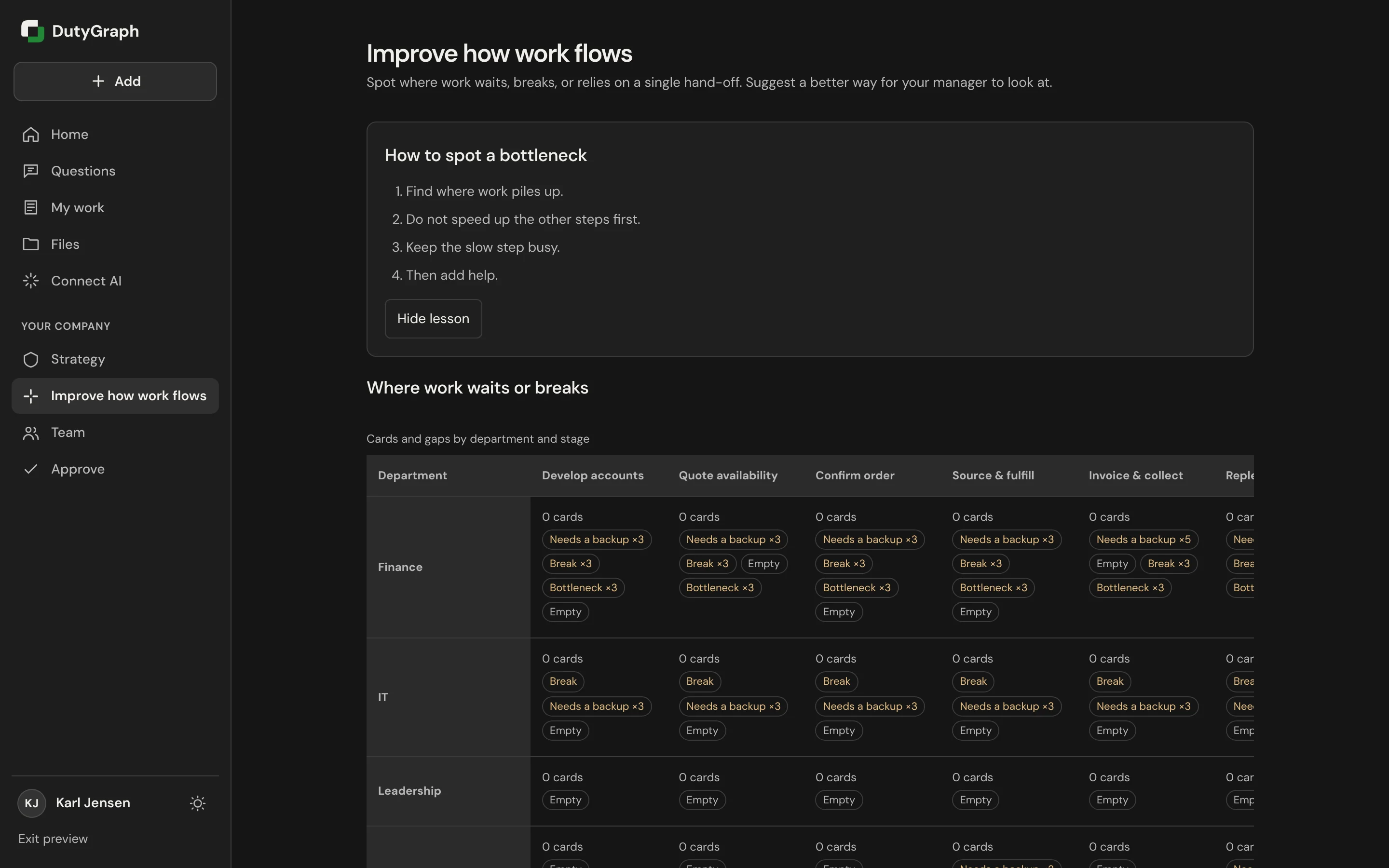
Improve how work flows
Improve how work flows shows where work waits, breaks or relies on a single hand-off, by department and stage. It starts with a short lesson on how to spot a bottleneck (select Hide lesson to close it). You can suggest a better way for your manager to look at.
Team
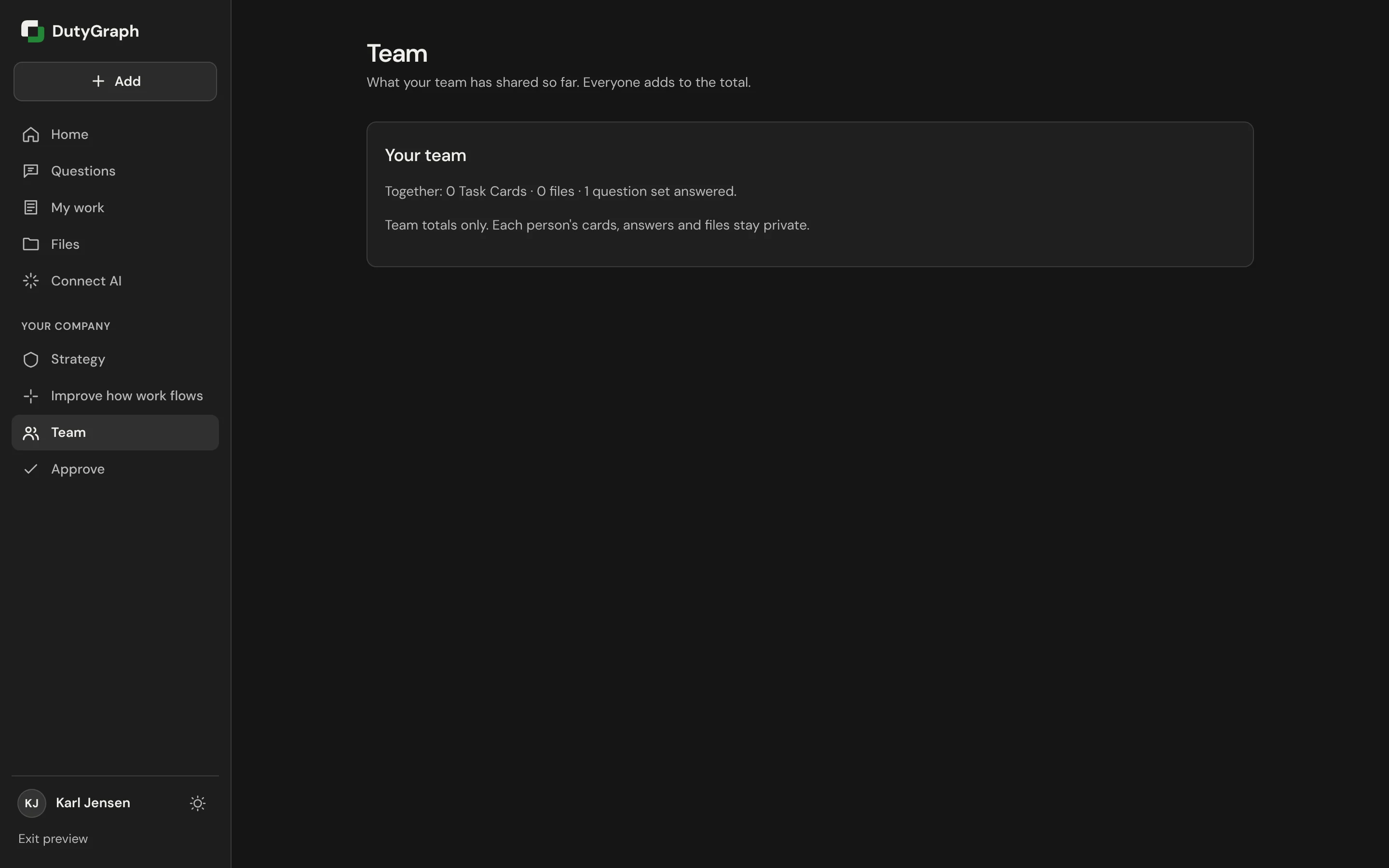
Team shows what your team has shared so far, as totals: Task Cards, files and question sets answered. It shows team totals only. Each person's cards, answers and files stay private.