
Appearance
3. Org chart and role profiles
This page is for: advisors and forward-deployed engineers, who work in the advisor dashboard.
Built
After the North Star session is saved, DutyGraph writes a draft role profile for each person. It starts with the CEO and moves down the org chart one level at a time.
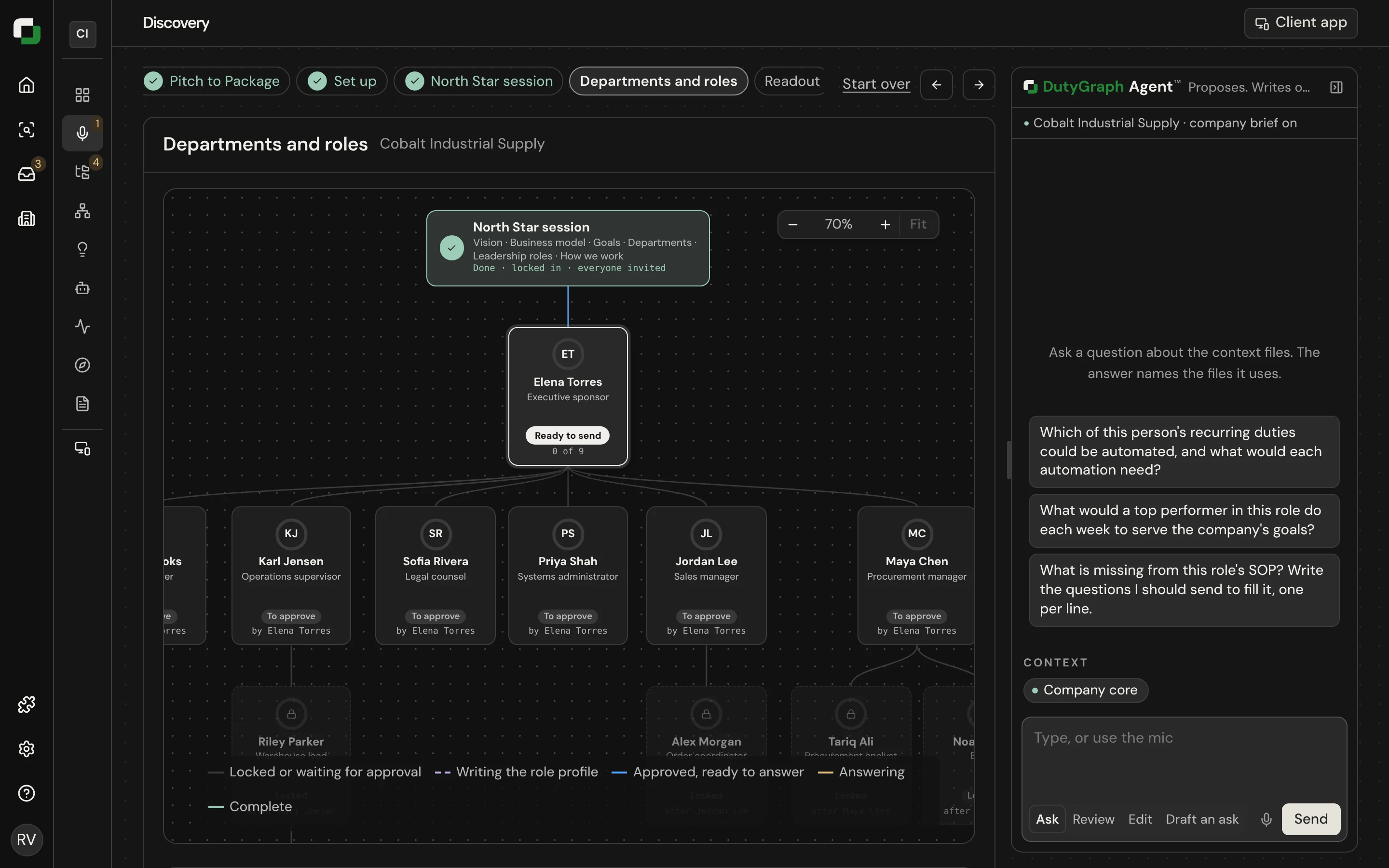
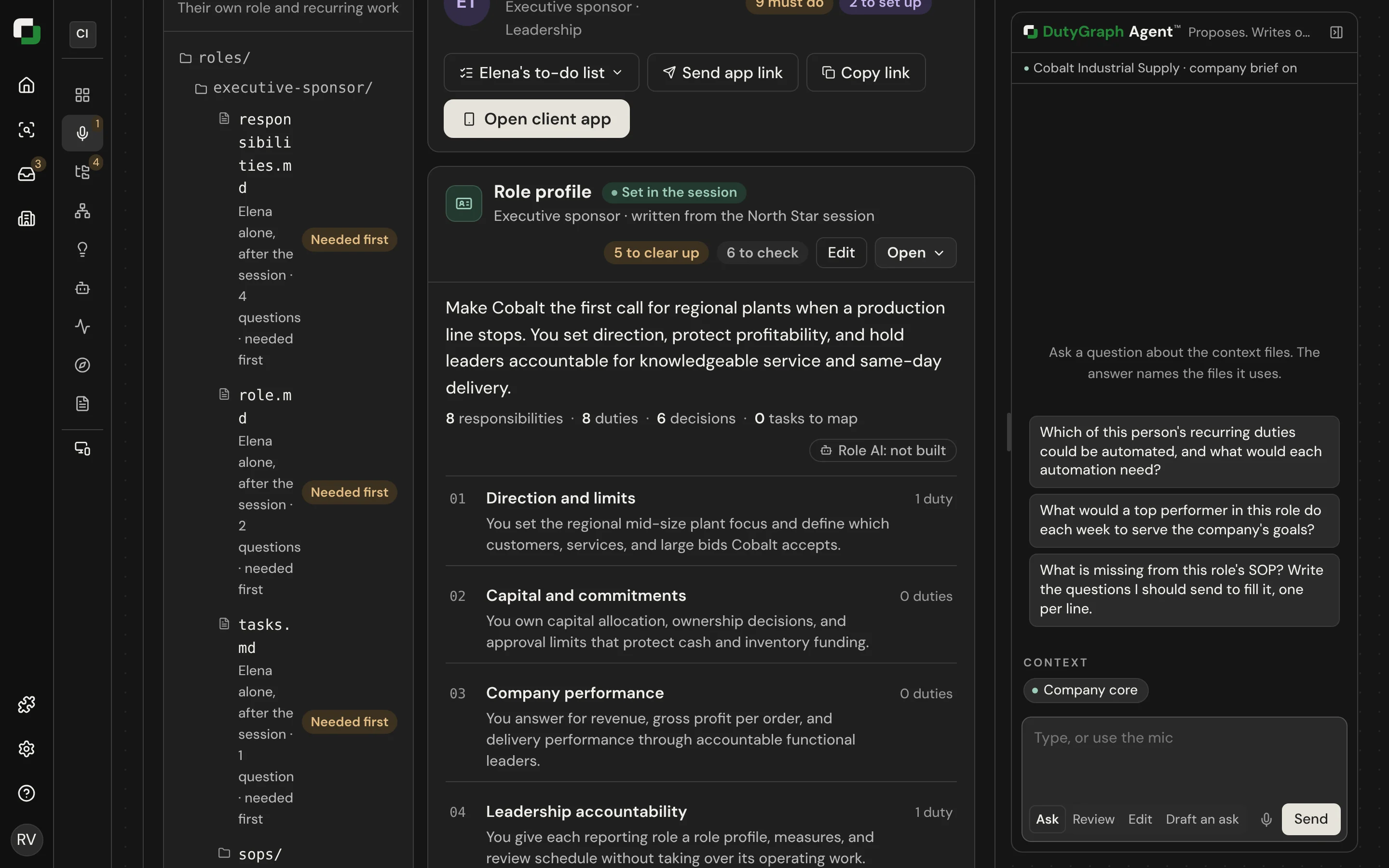
The org chart
Open Departments and roles. Each person is a card on the chart.
| Card | Meaning |
|---|---|
| Blue | It is this person's turn |
| Green | This person's part is done |
| Locked | The level above is not saved yet |
| Dashed amber ring | The advisor answered for this person and they have not confirmed it In review |
Once a person's app link is out, their card also shows where they are in their app: a ring with locked-in cards out of all their cards, a chip that names the step (for example App · Lock in, Link sent, Link not opened or Stuck · Talk, amber when stuck), and "x of y cards".
On a laptop the chart never opens smaller than 57%, so the cards can be read. A bigger chart starts centred on the North Star session: drag it to see the rest. − zooms out to 25% to see the whole tree. On a phone the chart is a list of people.
The team header reads [Company] team, how many people need a hand, and "x of y Task Cards locked in". The Org chart | Steps table switch shows the same people as a table: the six app steps as dots, last seen, and where each person is stuck.
Select a card to open that person's page.
The person page
The person page has the person's files on the left (drag the edge to make the column wider), the open tab in the middle, and their live client app on the right, as a phone. The phone follows what you look at: open a step and it shows that step's screen.
| Tab | What it holds |
|---|---|
| Steps | "What [name] sees and does": their app steps top to bottom, each Done, On it now, Stuck or Not yet, with See what [name] did under each step. A stuck step opens Why [name] is stuck with a note to send to their app. |
| Questions | The questions for this person (the to-do list described below) |
| Role profile | Their role profile, and any file you open from the files column |
| Stored | Their Task Cards, what they said in Talk, and their uploads |
Gaps found for [name] sits at the top of DutyGraph Agent™ on this page: hand-offs nobody receives, cards marked as not theirs, and reports waiting on their approval. Each has Ask [name], Answer it myself and Not a gap.
A question you send about one of their Task Cards shows on that card in their app, under From your advisor.
What is in a role profile
A role profile describes the role, not the person who has it today. It should still be right in two years.
The profile reads as a numbered procedure. At the top, a strip shows the Document id, the Status, the Last change, the Role holder, and Approved by (for the top person: Written from). Below it are numbered sections. A section with nothing in it is not shown.
| Section | What it says |
|---|---|
| Purpose | One short description of the role, with the qualifiers that matter such as the industry |
| Responsibilities, duties and tasks | One card for each responsibility, numbered R1, R2 and so on. A responsibility is a result the role answers for. Its duties are numbered R1.D1 and show how often they happen. Its tasks are numbered R1.T1. |
| Decision rights | Two boxes: You decide alone and You send to another role |
| Other recurring work | Work that is not linked to one responsibility |
| Hand-offs | What the role receives from other roles and what it sends to them |
| Other measures | Measures that are not linked to one responsibility |
| Current priorities | This period's priorities, on a dated line. They are not part of the standing role. |
Measures
Each responsibility card shows its measure in three cells: Measure, Today (the value now) and Target (the value the company wants). A cell with no value shows Open.
A responsibility without a measure shows No measure set. Select Ask [name] for the measure. This adds one question to the person's to-do list. The person gets it when you select Send in the list, and the button changes to Asked [name]. When the person answers, you see "[name] said:" with the answer. Select Use as the measure to put it on the responsibility.
Show source
On a profile written from November 12, 2026, a responsibility card can have a Show source button. It shows the words the responsibility was written from. Older profiles do not have the button. A person does not see the source on their own copy, because the source is their manager's words.
Screenshots on this page
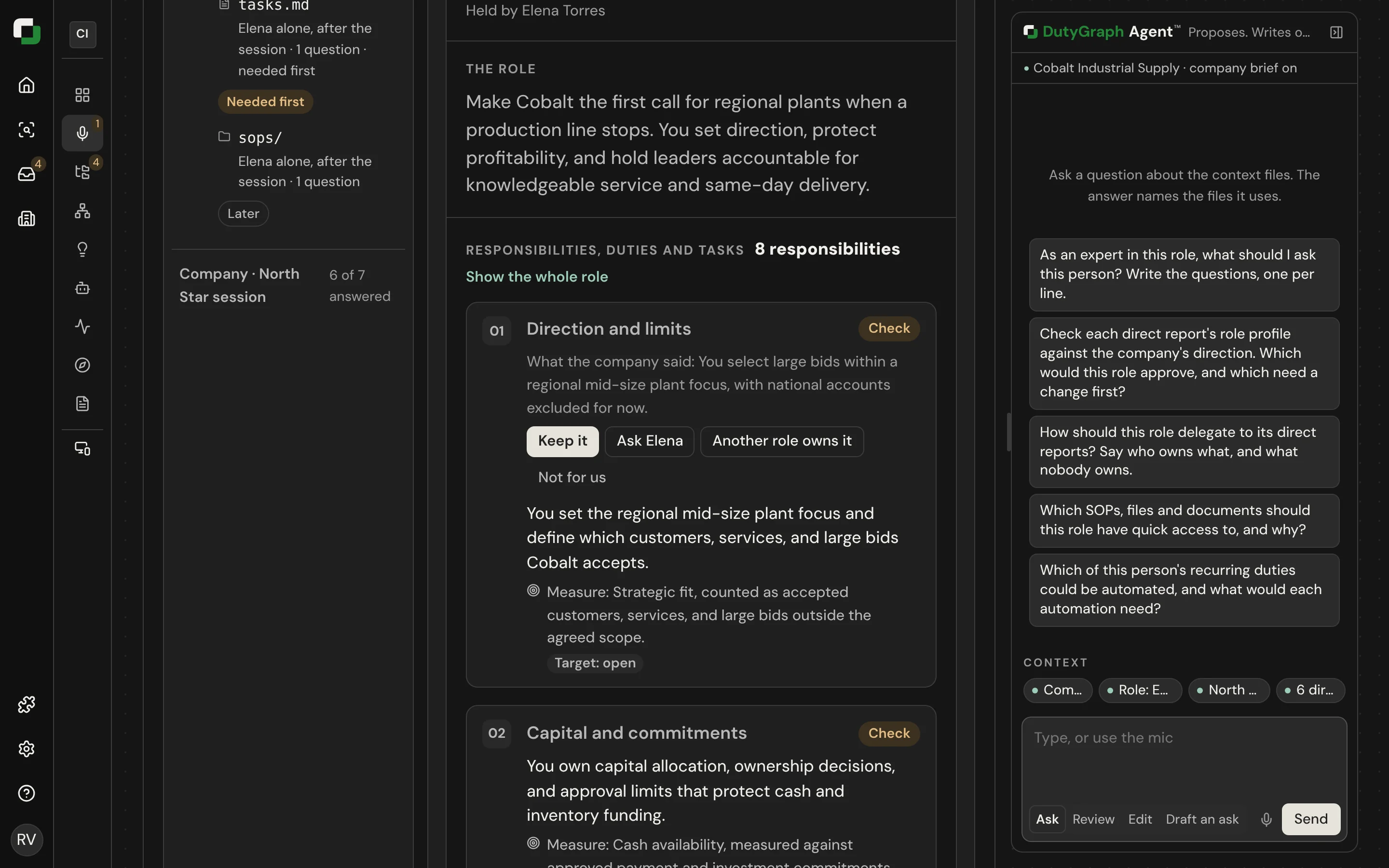
The screenshots below show the earlier layout of the role profile. They will be replaced.
A line the company has not confirmed carries a Check mark. For each one you choose: keep it, ask the person, mark that another role owns it, or mark it as not for this company.
How a profile is written
- DutyGraph drafts it from the answers above the person: the North Star files, the department charter and the manager's profile.
- It starts from the best practice for that role, then adds what this company said. Each duty names the responsibility it serves.
- The writer checks its own draft against the role standard before you see it.
How a profile is approved
- You check it first. Edit any line.
- The manager approves it. Each manager sees the profiles of their reports and marks them Looks right.
- The person confirms their own. They see it in the client app and answer the questions about it.
An approved profile is locked. Change it on purpose, not by a rewrite.
When a profile is approved, DutyGraph builds the role's AI.
The person's questions
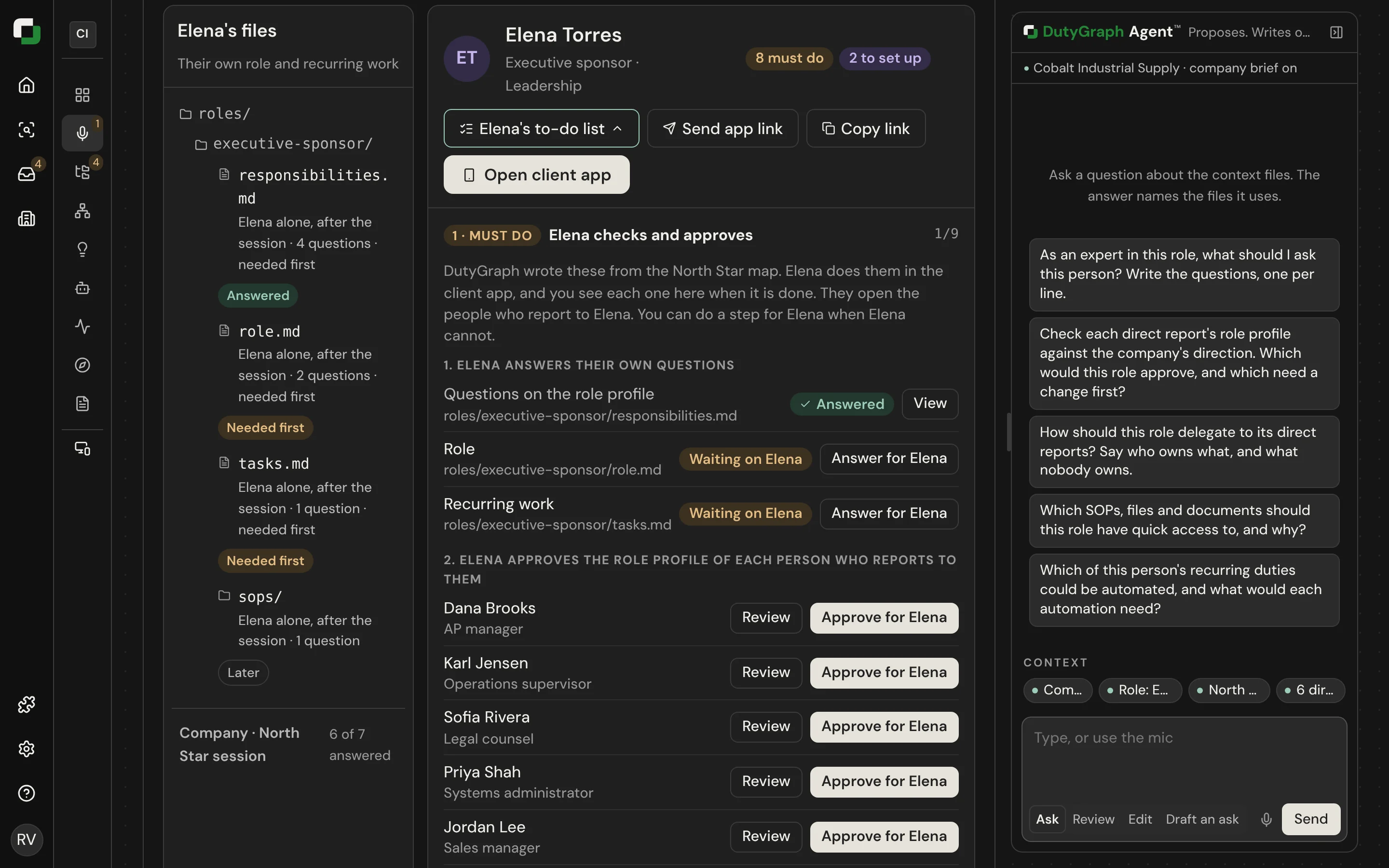
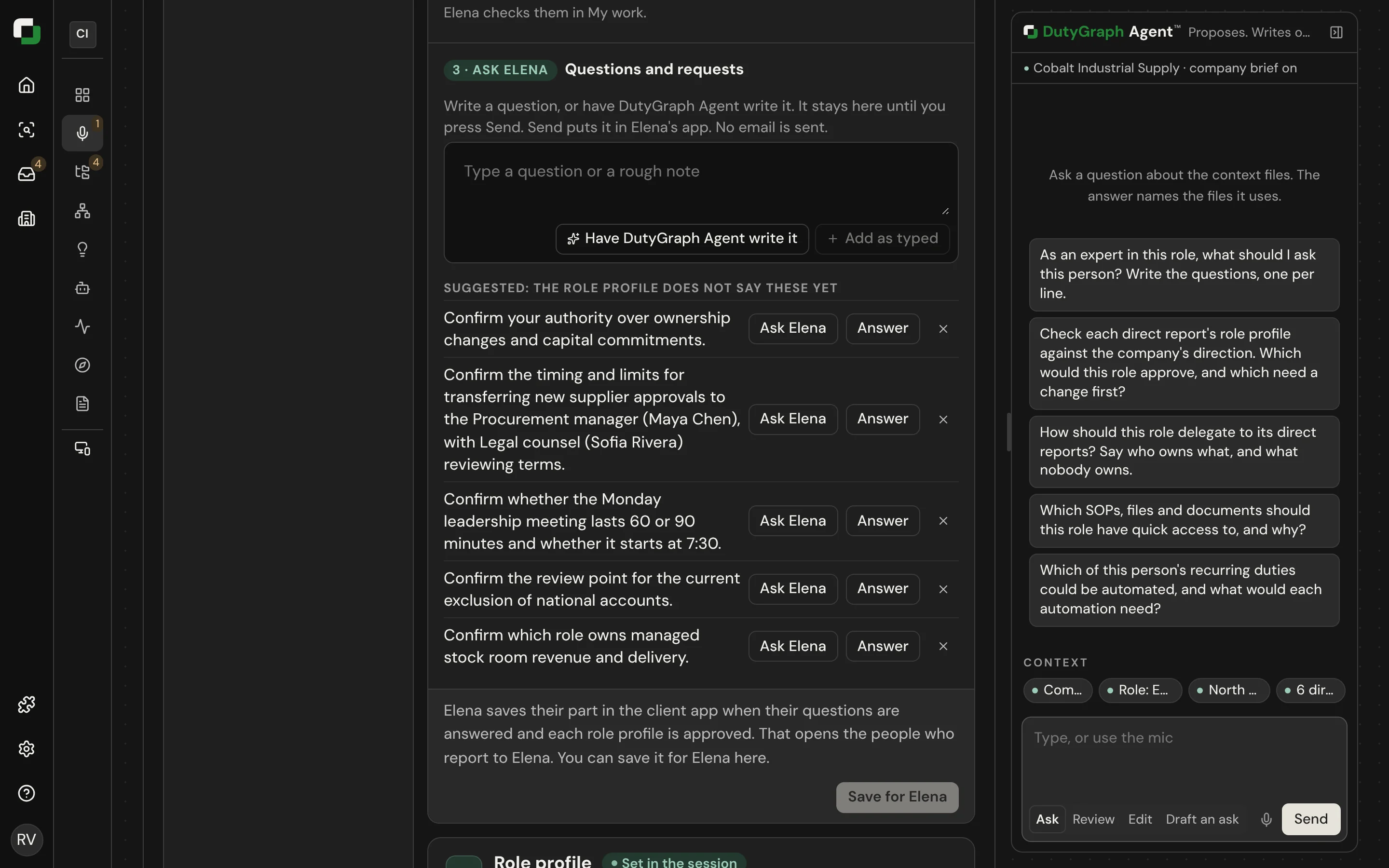
The Questions tab on the person page holds three parts:
- Must do: check the profile and answer the required questions. This opens the people below them.
- Set up next: role documents and Task Cards.
- Ask: questions from you and DutyGraph Agent™. Write one, or have DutyGraph Agent write it, then send.
Rows in the list have small DutyGraph Agent buttons:
| Button | Where | What it does |
|---|---|---|
| Check | Must do, on each file the person answers and beside each direct report whose role profile waits | Asks DutyGraph Agent to check that item |
| Check all | Must do, when more than one profile waits | Checks all of them |
| Set up | Set up next, on each file that is not done and on Task Cards | Asks DutyGraph Agent how to finish it |
A button asks DutyGraph Agent one question. It does not write anything. When DutyGraph Agent checks a direct report, its answer has an Approve [name]'s role profile button. That button does the approval, and it refuses when the profile is not ready.
Fix people and reporting lines
sh
dutygraph team
dutygraph person fix lee@example.com --manager-email robin@example.com
dutygraph person fix lee@example.com --left --note "Left the company"
DutyGraph Agent can also propose reporting lines from what it reads on the page. You select Apply.