
Appearance
Connect your AI
This page is for: the client's team, who use the client app on the web or on a phone.
Built
If you already use an AI such as ChatGPT, Claude, Gemini or Microsoft Copilot, you can use it with DutyGraph. Your AI can then read your company files, interview you about your work and send your Task Cards to the app. You check each card before it counts.
Open Connect AI in the menu. The page has three steps. Use step 1, or steps 2 and 3. You do not need both.
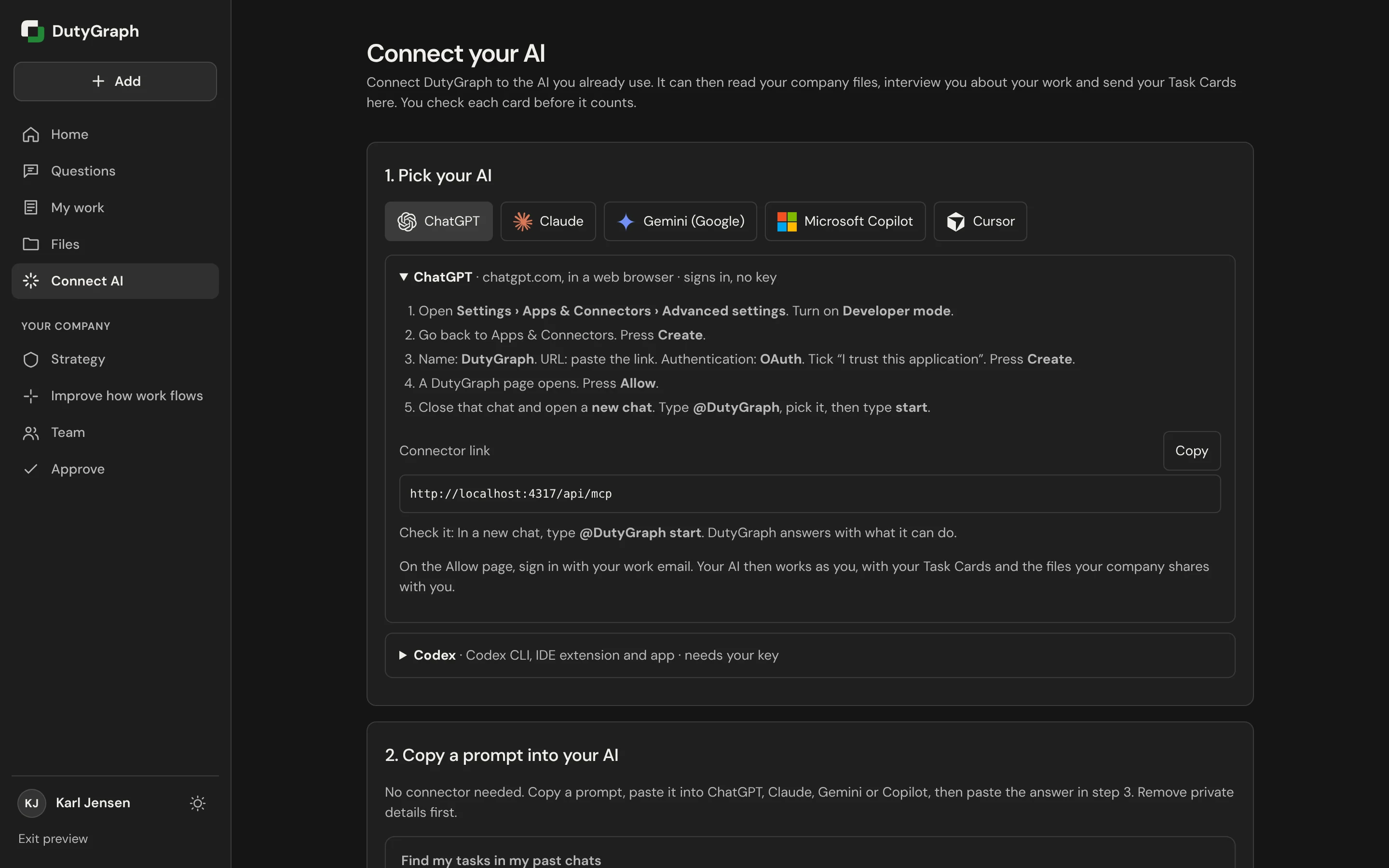
1. Pick your AI
Select your AI: ChatGPT, Claude, Gemini (Google), Microsoft Copilot or Cursor. The page shows the steps for that AI and says whether it signs in or needs a key. Codex has its own section, and it needs your key.
For ChatGPT in a web browser, for example, the page says:
- Open Settings, Apps & Connectors, Advanced settings. Turn on Developer mode.
- Go back to Apps & Connectors. Press Create.
- Name: DutyGraph. URL: paste the connector link. Authentication: OAuth. Tick "I trust this application". Press Create.
- A DutyGraph page opens. Press Allow.
- Close that chat and open a new chat. Type @DutyGraph, pick it, then type start.
Select Copy next to Connector link to copy the link. On the Allow page, sign in with your work email. Your AI then works as you, with your Task Cards and the files your company shares with you.
To check it worked, type @DutyGraph start in a new chat. DutyGraph answers with what it can do.
Follow the steps your own page shows. They differ for each AI.
2. Copy a prompt into your AI
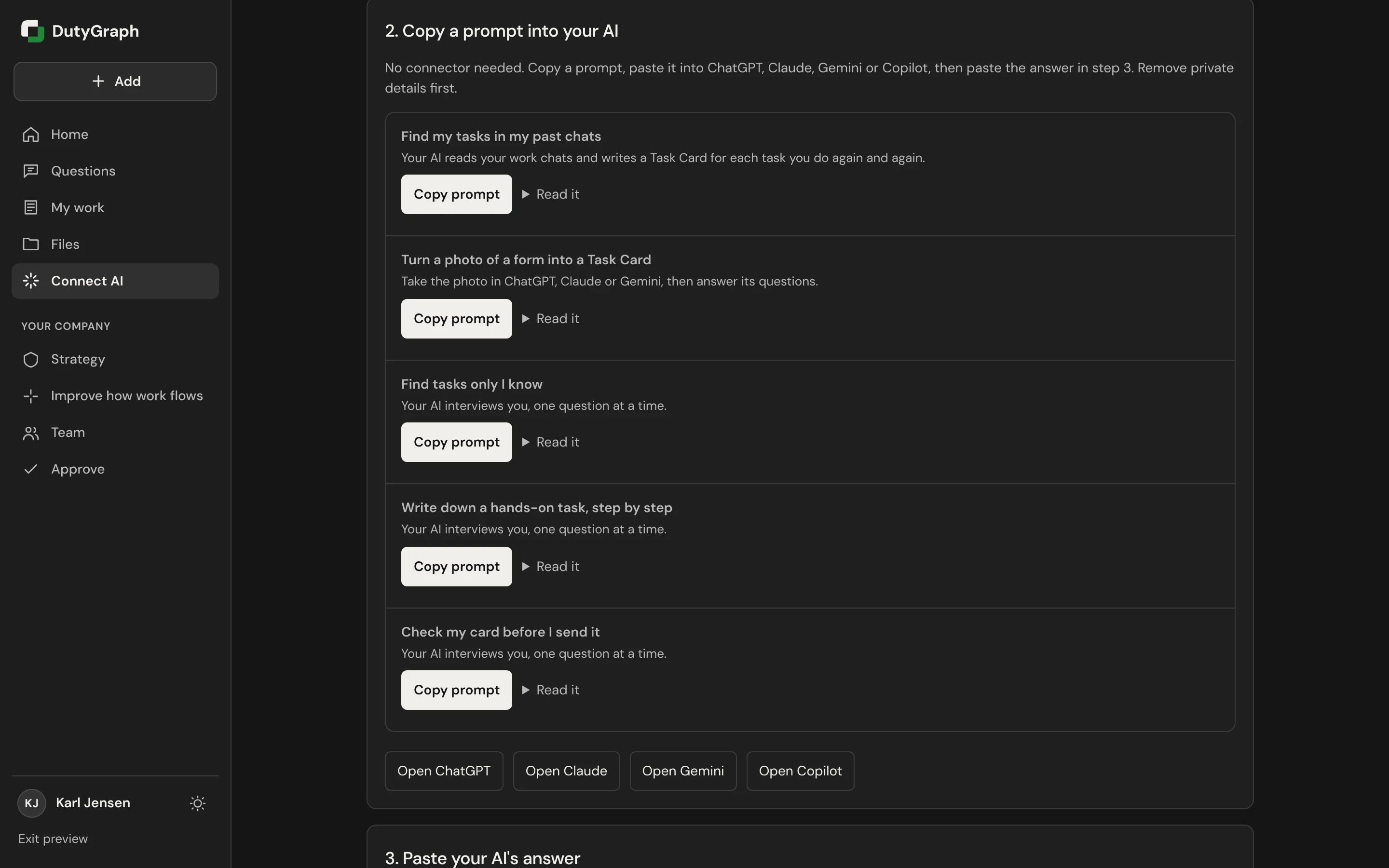
No connector needed. Copy a prompt, paste it into ChatGPT, Claude, Gemini or Copilot, and answer its questions. Remove private details first.
The prompts are:
| Prompt | What it does |
|---|---|
| Find my tasks in my past chats | Your AI reads your work chats and writes a Task Card for each task you do again and again. |
| Turn a photo of a form into a Task Card | Take the photo in ChatGPT, Claude or Gemini, then answer its questions. |
| Find tasks only I know | Your AI interviews you, one question at a time. |
| Write down a hands-on task, step by step | Your AI interviews you, one question at a time. |
| Check my card before I send it | Your AI interviews you, one question at a time. |
Each prompt has Copy prompt and Read it. Buttons under the list open ChatGPT, Claude, Gemini or Copilot.
3. Paste your AI's answer
- Paste your AI's answer in the box. It has a
# Task:heading for each task. - Select Make draft Task Cards. You can also upload the
.mdfile your AI made. - Open My work and check each draft. A draft counts only after you confirm it.
How your work connects
At the bottom of the page, How your work connects shows the company's vision, your department's directives, your role and your Task Cards, from top to bottom. It is always the latest version.
Related
- My work, Files and your company
- Employee tools over MCP, for technical readers